Most printers can do far more than print a page of black text. Features like CD printing, borderless photos and automatic double-sided printing are often already built into the printer on your desk, tucked away in a driver setting or a tray that never gets opened. Here are 15 printer features worth knowing about.
1. CD And DVD Printing
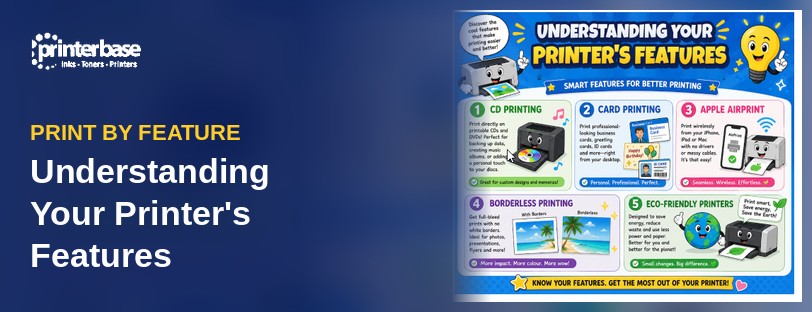
Some inkjet printers can print straight onto the surface of a printable CD, DVD or Blu-ray disc. The disc sits in a plastic tray that feeds through the printer, and the printer’s software lays out your artwork as a circle so text and images line up around the centre hole.
It’s handy for backing up family photos, making a disc for a wedding or giving a band’s demo a professional finish. The Canon PIXMA TS8750, for example, lists direct disc printing and takes one disc at a time through its multi-purpose tray.
You do need discs with a printable surface, usually white and inkjet-receptive, because standard shiny discs won’t absorb the ink. Disc printing has also become less common over the years, so check the spec sheet for “disc printing” or “CD/DVD printing” before you buy. Our CD printing printers page lists current models that support it.
2. Card Printing
Many people assume card needs a specialist printer. In reality, plenty of everyday inkjet and laser printers handle heavier stock for business cards, greeting cards, place cards and invitations. The number to look for is the maximum paper weight, measured in gsm (grams per square metre). Standard copier paper is 80gsm, while greeting card stock is often 250gsm to 300gsm.
Inkjets with a rear feed tray tend to cope best with thick card, because the paper takes a gentler route through the machine. The Canon PIXMA TS8750 handles Canon’s own photo paper up to about 300gsm, and it can print borderless business-card-sized prints (91 x 55mm). Laser printers vary more, which we cover in What Is The Maximum GSM That Laser Printers Will Accept?
Plastic ID cards are the exception. For those you’d need a dedicated ID card printer, which is a different machine altogether. For paper-based cards, take a look at our printers for printing on card.
3. Apple AirPrint
If you own an iPhone, iPad or Mac, AirPrint lets you print without installing a driver or an app. As long as the printer and your Apple device are on the same Wi-Fi network, the printer appears when you tap Share and then Print. Pick it, choose your copies and paper options, and tap Print.
AirPrint is built into iOS, iPadOS and macOS, and most wireless printers from the big brands support it. It’s one of those features people don’t realise they have, especially if they’ve been emailing documents to a laptop just to print them. Browse our AirPrint printers, or follow our step-by-step guide on how to print from Apple’s macOS.
4. Borderless Printing
Borderless printing runs the ink right to the edge of the paper, with no white margin. It’s what makes a photo printed at home look like one from a lab. Flyers, posters and presentation handouts benefit too.
To do this, the printer slightly enlarges the image so it spills just past the paper edges, which means a thin sliver of the picture gets trimmed. Most photo-capable inkjets support it on sizes such as 10 x 15cm (6 x 4in), 13 x 18cm (5 x 7in) and A4. You usually switch it on in the print dialogue or the manufacturer’s app, and on many models it’s only available with photo paper selected as the media type.
Laser printers rarely print borderless. If edge-to-edge printing matters to you, our borderless printers are the place to start.
5. Eco-Friendly Printing Features
Energy-saving and waste-reducing features are built into most modern printers, and many are switched on by default. Sleep mode and auto power-off cut energy use between jobs. Duplex printing halves your paper use (more on that below), while draft and toner save modes use less ink or toner on everyday pages.
On the spec sheet, look for ENERGY STAR or EPEAT ratings, which show a printer meets recognised energy and environmental standards. Ink tank printers also cut waste, because you refill them from bottles instead of throwing away plastic cartridges. In addition, most manufacturers run free cartridge recycling schemes. Our eco-friendly printers page brings these models together, and our guide to reducing your printing costs has more money-saving tips.
6. Automatic Duplex Printing
Duplex means printing on both sides of the paper. With automatic duplex, the printer prints one side, pulls the sheet back in and prints the other side without you touching it. It’s standard on most office laser printers and many home inkjets.
The catch is that it often isn’t switched on by default. Look for “Print on both sides”, “2-sided” or “Duplex” in the print dialogue. Choose long-edge binding for normal portrait documents, or short-edge for pages that flip up like a calendar. You can usually make it the default in the driver’s printing preferences, so you don’t have to remember each time.
Bear in mind that automatic duplex usually works on plain paper only. The Canon PIXMA TS8750, for instance, supports it on A4, A5, B5 and Letter plain paper. Printers without automatic duplex often offer manual duplex instead, where the driver prints the odd pages and then asks you to turn the stack over.
7. N-Up And Booklet Printing
N-up printing puts several pages onto one sheet, typically 2, 4, 6, 9 or 16, depending on the driver. Two-up is ideal for proofreading a long report or printing slides as handouts, and it cuts paper use straight away.
Booklet printing goes a step further. The driver rearranges your pages so that when you fold the printed stack down the middle, everything reads in the right order. That saves a lot of time for schools, churches, clubs and events producing programmes, orders of service or newsletters.
In Canon’s driver, for example, you choose Booklet from the Page Layout list, set the stapling side and margin, then fold and staple the finished sheets. A printer with automatic duplex handles the whole booklet in one go. Booklet mode usually needs plain paper selected as the media type.
8. Draft Mode And Toner Save
Not every page needs to look perfect. Draft mode (sometimes called Fast, Economy or Quick) prints with less ink, so pages come out quicker and slightly lighter. On laser printers, the equivalent is usually called Toner Save or EconoMode, which reduces the amount of toner laid down on each page.
It suits internal drafts, web pages, recipes and anything you’ll read once and recycle. Leave it off for client-facing documents, photos and anything with fine detail. You’ll find it in the print quality settings of the driver or app, and on some printers in the control panel’s settings menu too.
9. Print In Black With Xerox Driver Settings
Colour printers can get through colour toner on documents that don’t need it, such as emails with a coloured logo or web pages full of blue links. Xerox drivers include settings to stop this.
The Xerox Black and White option, found under Printing Options, converts everything in the document to black and white or greyscale. A separate “Print Colored Text in Black” option, on the driver’s Advanced tab, prints coloured text as solid black rather than shades of grey, which keeps it crisp and easier to read.
Other brands have similar settings, usually labelled Greyscale, Black Only or Mono. Not every option appears on every model or driver, so it’s worth a quick look through your printer’s preferences.
10. The Bypass Or Manual Feed Tray
That small fold-down tray on the front or side of many printers is the bypass tray, also called the multipurpose tray or manual feed slot. It’s there for media that doesn’t belong in the main paper cassette: heavier card, envelopes, labels, transparencies and, on some models, extra-long banner paper.
Customers often think they need a second printer for envelopes or labels, when the printer they already own can handle them through this tray. Load a sheet or a small stack, set the paper size and media type in the driver (for example, Envelope or Thick Paper), and choose the bypass or manual tray as the paper source.
Setting the right media type matters. On a laser printer, it adjusts the fuser temperature so the toner bonds properly to thicker stock.
11. Straight Paper Path
Closely linked to the bypass tray is the straight paper path. On many laser printers, opening the rear output cover lets paper fed through the manual slot travel straight through the printer and out of the back. Normally it would curl around inside and come out on top.
The flatter route means less bending, which reduces jams, curling and creased envelopes. Brother, for example, recommends its straight-through paper path for thick paper, labels and envelopes. Feed one sheet at a time, remove each print as it comes out and keep the paper square in the guides. If envelopes smudge, set the media type to Thick Paper or Thicker Paper to raise the fusing temperature.
Rear-feed inkjets give a similar benefit for card, as the paper drops in from the top rather than turning around a tight bend.
12. Additional Paper Trays
Many office printers accept optional extra paper trays that slot underneath. They add hundreds of sheets of capacity, so the printer needs refilling less often. More usefully, you can keep different paper in each tray, such as plain A4 in one, letterheads in another and A5 in a third.
Once the trays are fitted, tell the driver they’re installed (often under Device Settings or Accessories). After that, you can pick a tray for each job or let the printer choose by paper size. Some printers come with two paper sources as standard, such as a front cassette plus a rear feed. If you think you’ll need more capacity later, check the spec sheet for optional paper trays before you buy.
13. Bluetooth Printing
Bluetooth on a printer can mean two different things, and the spec sheet wording tells you which. Pocket photo printers, portable label printers and mobile receipt printers print over Bluetooth, pairing straight to a phone with no Wi-Fi network needed.
On most home inkjets and lasers, however, Bluetooth (usually Bluetooth Low Energy) is there to make setup easier. The manufacturer’s app finds the printer over Bluetooth and passes your Wi-Fi details across, then printing happens over Wi-Fi. Bluetooth is short range and slow for multi-page documents, so it suits photos and labels best.
Take a look at our Bluetooth printers. If you use an iPhone, our post on why the iPhone doesn’t support Bluetooth printing explains the options.
14. Mobile Printing Beyond AirPrint
Android phones have their own built-in printing standard, Mopria, which works much like AirPrint. Most current wireless printers are Mopria certified, so you can print from the Share or Print menu without a separate app. Each major brand also has its own app, such as HP Smart, Canon PRINT, Epson Smart Panel and Brother Mobile Connect, which add scanning, ink levels and printer settings to your phone.
There are a few other routes worth knowing about. Wi-Fi Direct lets a phone connect straight to the printer without a router, which is handy for visitors or places without Wi-Fi. NFC lets you tap a compatible phone on the printer to connect. Some printers even have their own email address, such as HP ePrint and Epson Connect Email Print, so you can send a document from anywhere and it prints at home.
Read our guides to Mopria print and printing from Android devices, or browse our NFC printers.
15. Low-Supply Alerts And Automatic Ink Replenishment
Running out of toner in the middle of a job is avoidable. Most networked printers have an embedded web server (EWS), a settings page you open by typing the printer’s IP address into a web browser. On many business models, you can set it to email you or your IT team when toner, ink or paper runs low. HP’s EWS, for instance, has an Alerts page where you add your email server and choose which alerts to send.
Subscription services go a step further. The printer keeps an eye on its own ink or toner levels over the internet and orders replacements before you run out, delivered to your door.
- HP Instant Ink: you pay for the number of pages you print each month, not for cartridges, and unused pages roll over up to a limit.
- Brother EcoPro: an ink and toner subscription with free delivery, no contract and an extended printer warranty.
- Epson ReadyPrint: ink is shipped automatically when the printer detects it’s running low, with plans such as ReadyPrint Flex for ink only.
Each scheme needs an eligible printer that stays connected to the internet. Read the terms before you sign up. With Instant Ink, for example, the subscription cartridges stop working once you cancel, so keep standard cartridges in mind.
Making The Most Of Your Printer Features
Most of these features cost nothing extra to use. They’re already in the driver, the app or a tray you may never have opened. Start with the quick wins: set duplex as your default, try 2-up for drafts and switch to draft mode or black-only printing for everyday pages. Those small changes cut paper, ink and toner use straight away.
Next, look at the jobs you might be sending elsewhere. Envelopes and labels can go through the bypass tray, card through the straight paper path, and photos can come out borderless. If you print from a phone, check whether AirPrint or Mopria is already working, because it usually is. And if you’re tired of running out of ink, an alert or subscription takes that worry away. When it’s time to replace your printer, our Print by Feature range lets you shop by the features that matter most to you.
Frequently Asked Questions
How Do I Find Out Which Features My Printer Has?
Start with the spec sheet or user manual for your exact model, which you’ll find on the manufacturer’s website. It’s also worth opening the printer’s preferences on your computer and clicking through each tab, as features such as N-up, booklet and toner save are listed there.
Do I Need Special Software To Use These Features?
Usually not. Most of them, including duplex, N-up, booklet and draft mode, are built into the standard printer driver. Disc printing is the main exception, as it normally needs the manufacturer’s own disc-printing software or app.
Can Any Printer Print On Card?
No. Every printer has a maximum paper weight, so check the gsm figure on the spec sheet. Printers with a rear feed, bypass tray or straight paper path handle thicker card far better than those that bend the paper around a tight curve.
Does Draft Mode Damage My Printer?
No. Draft mode and toner save simply use less ink or toner per page. The only trade-off is lighter, less detailed print, so switch back to normal or high quality for important documents and photos.
Is Mopria The Same As AirPrint?
They do the same job for different devices. AirPrint is Apple’s built-in printing for iPhone, iPad and Mac, while Mopria is the equivalent for Android. Many printers support both.
Can I Print A Booklet Without Automatic Duplex?
Yes, on many printers. The driver prints one side of the sheets and then prompts you to turn the stack over and reload it. It takes a little longer, but the finished booklet is the same.
Do Ink Subscriptions Work With Any Printer?
No. HP Instant Ink, Brother EcoPro and Epson ReadyPrint only work with eligible printers from that brand, and the printer has to stay connected to the internet so it can report ink levels.
Why Can’t I Select Borderless Printing?
On many printers, borderless is only available with certain paper sizes and photo paper selected as the media type. Change the paper type in the print dialogue and the option should appear, if your printer supports it.
Need Help or More Information ?
If you need any further help or more information, reach out to us by leaving a comment below or through one of the many ways on our Contact Us page.
Alternatively you can contact us by Phone on 0161 308 5800 or by Live Chat on our main Website Monday to Friday and our team will be happy to help or answer with any questions you might have.
You can also find all the various ways to connect with Us at the bottom of this page. Please share this post if you found it helpful.