
You’ve found a label printer that ticks every box, and the spec sheet says “Bluetooth”. So you’ll be able to print labels straight from your phone, right? Not necessarily. This is one of the questions we get asked most often, and the answer catches a lot of buyers out.
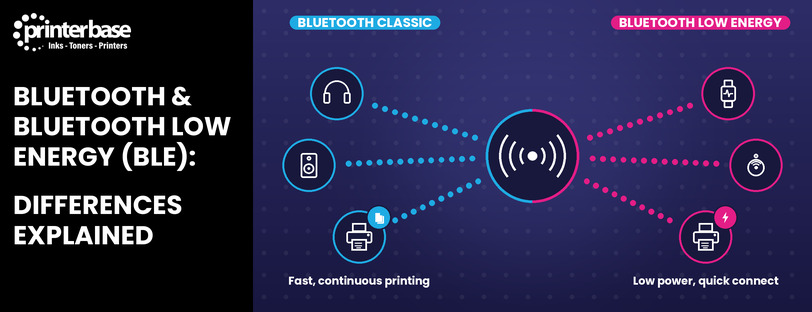
There are two types of Bluetooth: Bluetooth Classic and Bluetooth Low Energy (BLE). They share a name, but they were built for different jobs and they aren’t interchangeable. On many label printers, BLE is only there to help you set the printer up, while Bluetooth Classic is the connection that actually sends your labels to print. A printer with one doesn’t automatically have the other.
Why Bluetooth Matters When Buying a Label Printer
Bluetooth has become one of the most common connectivity options on modern printers. You’ll find it on compact desktop label printers, rugged mobile printers clipped to a belt, and even some industrial machines on a warehouse floor. It also links up phones, tablets, handheld scanners and mobile computers, which makes it a natural fit for printing on the move.
The catch is that “Bluetooth” isn’t one single technology. Manufacturers can fit Bluetooth Classic, Bluetooth Low Energy, both, or neither, and product listings don’t always make it clear which one you’re getting. For example, a printer that can only be configured over BLE won’t let you print labels from your phone over Bluetooth at all.
Understanding the difference takes a couple of minutes. However, getting it wrong can mean a printer that doesn’t fit the way your team works, so it’s worth knowing what to look for before you order.
What Is Bluetooth Classic?
Bluetooth Classic is the original form of Bluetooth, and it’s the one most people already know. It’s what connects your wireless headphones, your car’s hands-free system and your keyboard. You may also see it listed as Bluetooth BR/EDR on technical datasheets.
It’s designed for continuous communication. Once two devices pair, the connection stays open and data flows back and forth for as long as they’re connected. According to Link Labs, Bluetooth Classic supports data rates of up to 2.1 Mbps, which makes it well suited to moving larger amounts of data reliably.
That’s exactly what a print job needs. A label with a barcode, a logo and several lines of text is a lot more data than a quick status update, and the printer has to receive all of it without interruption. As a result, Bluetooth Classic is the connection you’ll find doing the printing in most mobile printing environments, from delivery drivers to shop floor staff.
The trade-off is power. Because the connection stays active, Bluetooth Classic uses more battery than its low energy counterpart.
What Is Bluetooth Low Energy (BLE)?
Bluetooth Low Energy, usually shortened to BLE, is a newer form of Bluetooth that arrived with the Bluetooth 4.0 standard. You might also see it written as BTLE, Bluetooth LE or, in older marketing, Bluetooth Smart. BTLE was common in the early days of Bluetooth 4.0, but BLE has since become the accepted industry term, so that’s the one we use throughout this guide.
BLE was developed to deliver wireless connectivity while using far less power than traditional Bluetooth. Rather than holding a connection open, a BLE device spends most of its time asleep. It wakes up, exchanges a small burst of data, then goes back to sleep. In fact, some BLE devices can run for months or even years on a single coin cell battery.
That makes it ideal for short communications and lightweight tasks, such as:
- Fitness trackers and smartwatches
- Smart home sensors, locks and thermostats
- Health monitors that send readings to a phone
- Location beacons and asset tracking tags
- Setup and configuration apps, including those used with some label printers
Here’s the important part for printer buyers. BLE isn’t used to print from. On Zebra label printers fitted with BLE, it’s used to connect the printer to the Zebra Printer Setup Utility app for setup and configuration only. You can’t send labels to the printer over a BLE connection.
Why Two Types of Bluetooth Exist
It’s tempting to think of BLE as the “new and improved” version of Bluetooth. It isn’t. Neither technology is better than the other. They simply exist to solve different problems.
Bluetooth Classic is typically designed for:
- Continuous communication between two devices
- Active, ongoing device connections
- Larger data transfers, such as audio, files and print jobs
Bluetooth Low Energy is typically designed for:
- Very low power usage
- Device discovery, so your phone can find nearby equipment
- Configuration tasks
- Status updates
- Short, occasional communications
Think of it like a phone call and a text message. A phone call keeps the line open, so it suits a long conversation. A text is quick and efficient, but you wouldn’t use it to read out a whole document. Bluetooth Classic is the phone call, and BLE is the text.
Bluetooth Classic vs BLE: The Key Differences
Both technologies use the same 2.4 GHz radio band and both carry the Bluetooth name. Even so, they behave very differently in practice. Here’s how they compare when it comes to printers and mobile devices.
| Feature | Bluetooth Classic | Bluetooth Low Energy (BLE) |
|---|---|---|
| Primary Use Case | Continuous data transfer, such as audio and printing | Short bursts of data, such as sensors, discovery and setup |
| Power Consumption | Higher | Very low |
| Connection Behaviour | Stays connected while in use | Connects briefly, then sleeps |
| Device Discovery | Possible, but not its main strength | Designed for it |
| Printer Setup | Supported on some printers | Commonly used, for example with the Zebra Printer Setup Utility |
| Printing Capability | Yes, used to send print jobs | No, not used to print on label printers |
| Battery Impact | Drains batteries faster | Minimal impact on battery life |
The table tells you what each technology does. What matters more is what those differences mean when you’re actually using a printer.
They Can’t Talk Directly to Each Other
Bluetooth Classic and BLE use different radio formats. According to Nordic Semiconductor, a Classic-only device and a BLE-only device cannot communicate directly. Most modern smartphones get around this by supporting both, switching between them as needed. The question is always what the printer supports, not the phone.
Only One of Them Prints
This is the difference that matters most. If you want to send labels from a phone, tablet or handheld computer to a printer over Bluetooth, you need Bluetooth Classic. BLE simply wasn’t designed to carry print jobs. Its job on a label printer is setup, discovery and configuration.
Battery Life Works Differently
On a mobile printer, the Bluetooth Classic connection to your handheld device stays active while you work, so it does use more power. That’s normal, and mobile printers are built with batteries sized for a full shift. BLE, meanwhile, barely touches the battery, which is why it suits a quick setup session from your phone.
The Spec Sheet Might Only Say “Bluetooth”
Some listings say “Bluetooth” without saying which kind. Others list “BLE” or “BTLE” in among other connections, where it’s easy to misread as general Bluetooth support. Because the two do completely different jobs on a printer, that one word can be the difference between a printer that fits your workflow and one that doesn’t.
How Label Printers Use Bluetooth
Bluetooth support varies a lot between label printer types, and even between models in the same range. Here’s what you’ll typically find.
Desktop Label Printers
Many desktop label printers now include BLE as standard so you can set them up from a phone. Bluetooth Classic, on the other hand, isn’t always included. On some models it’s only available on specific versions, or as part of an optional wireless module alongside Wi-Fi. So two desktop printers that look almost identical can have very different Bluetooth capabilities.
Mobile Label Printers
Mobile label printers are where Bluetooth Classic really earns its place. If you’re new to them, our guide to what mobile label printers are is a good starting point. These compact, battery-powered printers pair with a smartphone or handheld computer and print labels, receipts and tickets wherever you’re working. Many also include BLE for quick setup, giving you both technologies in one device.
Industrial Label Printers
Industrial printers usually sit in one place and connect over Ethernet, USB or Wi-Fi. Some include BLE so engineers can configure them from a phone without a laptop, and some offer Bluetooth Classic as an option. Others have no Bluetooth at all.
Four Possible Combinations
Across all of these printer types, a manufacturer may offer:
- Bluetooth Classic only: you can print over Bluetooth, but setup is done another way
- BLE only: you can set up the printer from an app, but you can’t print over Bluetooth
- Both: BLE for setup and Bluetooth Classic for printing
- Neither: setup and printing are done over USB, Ethernet or Wi-Fi
Connectivity changes from model to model, so it should never be assumed.
Why BLE Is Used for Printer Setup
Zebra is a good example of how BLE is used on label printers. On BLE-equipped Zebra printers, the BLE connection links the printer to the free Zebra Printer Setup Utility app on your phone or tablet. According to Zebra’s own documentation, the app is designed to connect, configure and check the status of Zebra Link-OS printers from a mobile device, and it’s particularly handy on printers without a display.
Through BLE and the app, you can typically handle tasks like:
- Printer discovery: finding the printer nearby without knowing its network address
- Configuration changes: adjusting settings such as print darkness, speed and media type
- Network onboarding: entering Wi-Fi or Ethernet details so the printer can join your network
- Diagnostics and management: checking status, alerts and configuration details
Why use BLE for this rather than Bluetooth Classic? Setup is a short job that only needs small amounts of data. BLE handles it quickly, uses very little power, and lets you walk up to a printer and configure it from your phone with no cable, laptop or driver needed. For IT teams rolling out mobile printers across several sites, that’s a real time saver.
What BLE won’t do is print. Zebra has stated that BLE on its printers is designed for configuration rather than print jobs, because of its low data rate. Once the printer is set up, the labels themselves need to go over another connection, such as Bluetooth Classic, Wi-Fi, Ethernet or USB.
Why Bluetooth Classic Is Used for Printing
Printing is a different kind of job from setup. The printer and your device need to stay in active communication while the label data is sent, and every part of that data has to arrive intact. A missing chunk of a barcode means a label that won’t scan.
Bluetooth Classic is built for exactly this. It keeps a steady connection open, handles larger amounts of data, and keeps talking to the printer for the whole job. That’s why it’s the go-to option whenever someone needs to print from a handheld device. For instance:
- Printing labels from a smartphone: a small business owner prints shipping labels straight from an app on their phone
- Retail: staff print shelf-edge labels and price markdowns as they walk the aisles
- Delivery and logistics: drivers print receipts and proof-of-delivery slips at the customer’s door
- Mobile workforce deployments: warehouse and field service teams scan an item, then print a label on the spot from a belt-worn printer
In each case, the user experience depends on a reliable link between the handheld device and the printer. Bluetooth Classic provides that, and BLE doesn’t.
iPhones are a special case. Apple doesn’t support general Bluetooth printing on iOS, so printing to a label printer over Bluetooth from an iPhone depends on the printer and its app being built to work with iOS. We explain more in our guide on why an iPhone doesn’t support printing by Bluetooth. Android users have more options, which we cover in how to print from Android devices.
Common Mistakes When Buying a Bluetooth Label Printer
Most Bluetooth compatibility problems we see come down to a few common misunderstandings. Here’s what to watch out for.
Assuming All Bluetooth Is the Same
It’s easy to treat Bluetooth as one feature, like USB. In reality, Bluetooth Classic and BLE are separate technologies. A printer that supports one may not support the other, and a device built for one can’t connect directly to a device that only has the other.
Assuming BLE Means You Can Print Over Bluetooth
This is the big one. A buyer sees BLE on a spec sheet, orders the printer and then finds they can’t print to it from their phone. On label printers, BLE is generally there for setup and configuration. If wireless printing from a mobile device is the goal, you need Bluetooth Classic, or Wi-Fi with a compatible app.
Not Reading the Full Specifications
Product summaries often shorten connectivity to a single word. The full specification, datasheet or user guide usually tells you exactly which Bluetooth type is fitted, and whether it’s standard or an optional extra.
Buying Based on a Single Connectivity Feature
Seeing “Bluetooth” and stopping there can lead to the wrong printer. Look at the whole picture instead: which devices you’ll print from, which apps you’ll use, and which other connections, such as USB, Ethernet or Wi-Fi, you might need alongside Bluetooth.
How to Check Which Bluetooth a Printer Supports
The good news is that checking is quick, as long as you know where to look. Before you buy, have a look at:
- Product specifications: the full spec list on the product page, not just the headline features
- Manufacturer datasheets: the specs PDF usually lists Bluetooth type and version clearly
- Product manuals: user guides often explain which features use Bluetooth Classic and which use BLE
- Connectivity sections of product listings: check whether Bluetooth is standard, model-specific or an optional module
Pay close attention to the wording. Terms such as Bluetooth, Bluetooth Classic, Bluetooth Low Energy, BLE and BTLE may not mean the same thing, and they don’t always indicate identical functionality. If a listing only mentions BLE or BTLE, assume it’s for setup rather than printing until you’ve confirmed otherwise.
Still not sure? Call our team on 0161 308 5800 before you order. We’ll check the exact connectivity options for the model you’re looking at, so you know what you’re getting before it arrives.
Which Type of Bluetooth Do You Need?
Start with what you want the printer to do, then match it to the right technology. This quick guide covers the most common requirements.
| Requirement | Recommended Technology |
|---|---|
| Discover a nearby printer | BLE |
| Configure a printer through a mobile app | BLE |
| Initial setup and deployment | BLE |
| Print labels from a smartphone | Bluetooth Classic |
| Send print jobs wirelessly over Bluetooth | Bluetooth Classic |
| Maintain active print communication | Bluetooth Classic |
| Set up and print from mobile devices | Both BLE and Bluetooth Classic |
As a rule of thumb, if you only need to set up the printer from your phone and will print over USB, Ethernet or Wi-Fi, BLE is enough. If you need to print labels directly from a phone, tablet or handheld computer over Bluetooth, make sure Bluetooth Classic is listed. For mobile teams, a printer with both gives you easy setup and dependable printing in one device. You can browse our full range of label printers to compare connectivity options across brands.
The Key Takeaway Before You Buy
Bluetooth Classic and Bluetooth Low Energy carry the same name, but they do different jobs. Bluetooth Classic is the one associated with active print communication, keeping a steady connection open so your label data reaches the printer intact. BLE, on the other hand, is associated with discovery, setup and configuration, using very little power to get a printer onto your network or adjust its settings from an app.
On label printers, that split is especially clear. Many models use BLE to connect to setup tools like the Zebra Printer Setup Utility, while printing itself happens over Bluetooth Classic, Wi-Fi, Ethernet or USB. Support for one never guarantees support for the other, and some printers offer both, one, or neither.
So before you order, always check a printer’s connectivity specifications, especially where Bluetooth or BLE is listed. Read the full specs or the manufacturer’s datasheet PDF, and look for the exact Bluetooth type rather than the word “Bluetooth” alone. If you’re unsure, our team is happy to confirm the connectivity options for any model before you buy. A two-minute check now saves the hassle of a printer that can’t print the way you need it to.
Frequently Asked Questions
What Is Bluetooth Low Energy?
Bluetooth Low Energy (BLE) is a version of Bluetooth designed to use very little power. It sends small amounts of data in short bursts and sleeps in between, which suits wearables, sensors and setup apps. On label printers, BLE is typically used for discovery, setup and configuration rather than printing.
What Is Bluetooth Classic?
Bluetooth Classic is the original form of Bluetooth used by headphones, car systems and keyboards. It keeps a continuous connection open and handles larger data transfers. On printers, it’s the type of Bluetooth that’s commonly used to send print jobs from phones, tablets and handheld computers.
Is Bluetooth Low Energy the Same as Bluetooth?
No. BLE is part of the wider Bluetooth family, but it’s a separate technology from Bluetooth Classic. The two use different radio formats, so a BLE-only device can’t connect directly to a Classic-only device. Most modern smartphones support both, which is why the difference often goes unnoticed.
Can You Print Using Bluetooth Low Energy?
On label printers, generally not. BLE is designed for short, low-power communications and isn’t used to carry print jobs. On Zebra printers fitted with BLE, for example, it’s used to connect to the Zebra Printer Setup Utility app for setup only. To print over Bluetooth, the printer needs Bluetooth Classic.
Does BLE Automatically Mean Bluetooth Printing Is Supported?
No, and this is one of the most common buying mistakes. A printer that lists BLE or BTLE may not have Bluetooth Classic at all. Always check the full specifications to confirm Bluetooth Classic is included if you need to print from a mobile device over Bluetooth.
Why Do Some Printers Include Both Technologies?
Each one does a different job well. BLE makes setup quick and easy from a phone, while Bluetooth Classic handles the printing. Including both means you can configure the printer in minutes and then print reliably from handheld devices, which is particularly useful for mobile printers used by delivery, retail and warehouse teams.
How Can Buyers Identify Which Bluetooth Technology a Printer Supports?
Check the product specifications, the manufacturer’s datasheet or specs PDF, and the user manual. Look for the exact wording, such as Bluetooth Classic, BLE or BTLE, and whether it’s standard or an optional module. If it’s still unclear, call our team on 0161 308 5800 and we’ll confirm the connectivity options before you buy.
Need Help or More Information ?
If you need any further help or more information, reach out to us by leaving a comment below or through one of the many ways on our Contact Us page.
Alternatively you can contact us by Phone on 0161 308 5800 or by Live Chat on our main Website Monday to Friday and our team will be happy to help or answer with any questions you might have.
You can also find all the various ways to connect with Us at the bottom of this page. Please share this post if you found it helpful.