

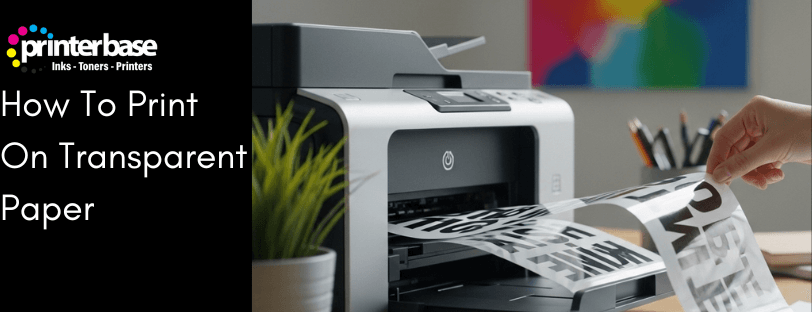
Transparent paper only looks simple to print on until you try it. Load the wrong film into a laser printer and you can melt it around the fuser. Get the settings wrong on an inkjet and you end up with pooled ink that smears the second you touch it. None of this is complicated once you know what your printer needs, but it does trip up a lot of people on their first attempt.
This guide covers the film types, the printer settings that actually matter, and the printers we’d recommend if you’re printing transparencies regularly, whether that’s for overhead projection, craft stencils, screen printing positives or window signage.
What People Call Transparent Paper
You’ll see the same product sold under several names, so don’t assume you’re buying the wrong thing if the packaging doesn’t say “transparent paper” outright. The common terms are acetate, transparencies, transparency film and printable film. They all refer to the same clear plastic sheet designed to run through a printer.
Inkjet Film And Laser Film Are Not Interchangeable
The single biggest mistake people make with transparency printing is buying the wrong film for their printer. Inkjet printers and laser printers work in completely different ways, and the film has to match.
Inkjet Transparency Film
These printers spray liquid ink onto the page, so inkjet transparency film has a lightly textured coating on one side to absorb that ink and stop it pooling on the surface. Feel the sheet before you load it: the printable side is slightly rough or matte, while the reverse is smooth and glossy. Some packs include a corner notch to mark the correct side. Print on the wrong side and you’ll get blurred text and smudged colour, because the ink has nowhere to soak into.
Laser Transparency Film
Laser printers fuse toner to the page using heat, often well above 180°C, so laser transparency film is made from heat-resistant polyester rather than standard plastic. Never run inkjet film through a laser printer. It will warp, and in the worst cases it melts against the fuser roller and damages the printer. Look for packaging that specifically says “laser transparency film” and has a smooth, glossy surface built to bond with toner.
| Feature | Inkjet Film | Laser Film |
|---|---|---|
| Surface | Textured/matte coating on the print side | Smooth, glossy on both sides |
| Material | Coated plastic sheet | Heat-resistant polyester |
| Risk If Used Wrong | Ink pools, smears, dries slowly | Warps or melts inside the printer |
| Drying Time | 1 to 5 minutes | Instant, toner is fused by heat |
Getting Your Printer Settings Right
Correct settings make more difference to the final print than the film itself. Most modern printers list a “Transparency”, “Film” or “Speciality Media” option in the paper type menu; use it if it’s there.
Set The Media Type
On an inkjet, choose Photo Paper, Glossy or Transparency, whichever your driver offers. On a laser printer, select Transparency if it exists, or fall back to Labels or Heavy Paper, both of which slow the print speed down enough for the toner to adhere properly.
Push The Print Quality Up
Choose Best or High Quality on an inkjet, and High Resolution or Professional mode on a laser printer. Higher quality settings apply more ink or toner per pass, which matters far more on a non-absorbent surface than it does on paper.
Feed One Sheet At A Time
Transparent sheets are slippery, so they misfeed more easily than paper. Use the manual feed slot if your printer has one, and load a single sheet rather than a stack, even if the main tray has room for more.
How To Print On Transparent Paper: Step By Step
1. Choose The Right Film
Match the film to your printer type before you buy anything. A coated film built for the wrong printer wastes money and risks damaging the machine.
2. Prepare Your Design
Set your document size to match the transparency sheet exactly, whether that’s A4 or a custom size, so nothing crops or stretches during printing. Dark colours print far more clearly on transparent film than pale ones, so avoid light greys and pastels if legibility matters.
3. Load The Sheet Correctly
Identify the printable side using the texture test above, then load it following your printer’s recommended orientation. Overloading the tray with multiple sheets is the most common cause of jams on this kind of media.
4. Apply The Right Settings
Select the transparency or acetate option in your printer properties, and set the resolution as high as it will go. Some printers add extra options specific to transparencies, such as a longer drying pause between pages, so it’s worth a quick check of the manual the first time.
5. Run A Test Print On Paper
Print your design onto ordinary paper first. It costs almost nothing and catches layout or colour problems before you commit an expensive sheet of film.
6. Print The Transparencies
Make sure you’ve got enough ink or toner for the whole job before you start, then print. Let each sheet dry before handling it, and if you’re printing several, let one finish drying before you start the next.
7. Allow Drying Time On Inkjet Prints
Laser prints are dry the moment they leave the printer, since the toner is fused by heat. Inkjet prints need somewhere between one and five minutes, so resist the urge to stack or touch them straight away.
8. Handle And Store With Care
Once dry, keep transparencies in protective sleeves if you’re using them for overhead projection or long-term storage. Fingerprints and scratches show up far more obviously on clear film than on paper.
What You Can Use Transparent Prints For
Transparency printing isn’t limited to old-fashioned overhead projectors. It’s genuinely useful across several jobs:
- Craft stencils and DIY projects
- Planner and scrapbook overlays
- Screen printing positives
- Product mock-ups and packaging proofs
- Window signs and shop displays
- Presentation and projection sheets
- Labels, decals and custom branding
Best Printers For Transparency Printing
Any inkjet or laser printer can technically attempt a transparency, but some handle it far better than others. Here’s what we’d recommend, depending on your budget and how often you’ll be printing on film.
OKI C651: Best All-Round Printer For Transparencies
The OKI C651 is an LED laser printer rather than a conventional laser, which means it runs at lower internal temperatures and reduces the risk of warping film. Its 100-sheet multipurpose tray handles transparency sheets without fuss, and print quality holds up well for marketing material and presentation graphics alike.
Brother HL-L2445DW: Best Budget Option
Brother’s HL-L2445DW is a compact mono laser printer with a single-sheet bypass tray rated for media up to 230gsm, which covers laser transparency film comfortably. It’s mono only, so it’s better suited to occasional black-and-white transparencies than colour work.
Canon PIXMA iX6850: Best Inkjet For A3 Work
Canon’s PIXMA iX6850 handles A3 media and thicker stock well, which makes it a solid inkjet choice for craft and hobby transparency printing. Its mix of dye and pigment-based blacks gives sharper text than most inkjets manage on film.
Canon PIXMA PRO-200S: Best For Colour-Critical Work
The Canon PIXMA PRO-200S is built for colour accuracy, which shows on transparency film where washed-out colour is the most common complaint. It’s the printer we’d point to for design work, product mock-ups or anything where colour fidelity actually matters.
Common Transparency Printing Problems And How To Fix Them
| Problem | Likely Cause And Fix |
|---|---|
| Ink smudging or running | You’re probably printing on the wrong side of inkjet film. Check the texture, reduce ink saturation in your print settings, and allow more drying time. |
| Streaks or lines | Clean the printhead on an inkjet, run the maintenance cycle, and check ink or toner levels. On a laser printer, check the drum for dirt or marks. |
| Warping or melting | This only happens when inkjet film goes through a laser printer. Switch to laser-safe film immediately. |
| Faded colours | Set print quality to the highest available option, and confirm the film is rated for your printer type. |
| Paper jams | Feed sheets one at a time through the manual tray rather than stacking them. |
| Poor overall quality | Calibrate the printer, check colour settings in your design software, and update your printer drivers. |
| Misalignment | Check alignment in your design software first, then confirm the sheets are loaded in the correct tray and orientation. |
Our Verdict
If you only print transparencies occasionally and mostly need text or line art, the Brother HL-L2445DW is the sensible buy: cheap, reliable, and it won’t melt the film. For regular use, especially in colour, the OKI C651 is our overall pick, since its LED engine runs cooler than a conventional laser and gives consistent results across large batches. If colour accuracy is what matters most, for design proofs or presentation graphics, spend the extra on the Canon PIXMA PRO-200S. Whichever printer you choose, matching the film to the printer type matters more than the printer itself.
Frequently Asked Questions
Can I print transparencies on a regular home printer?
Most standard inkjet and laser printers can print transparencies, provided you use film rated for your printer type and select a transparency or speciality media setting if one’s available. Check your printer’s manual if you’re not sure it offers this option.
What’s the difference between acetate and transparency film?
In practice, nothing. Acetate, transparency film and printable film are different names for the same product: a clear plastic sheet designed to run through a printer.
Why did my transparency sheet melt inside my printer?
This happens when inkjet film is run through a laser printer. Laser printers fuse toner using heat, and standard inkjet film isn’t built to withstand it. Always use film labelled specifically for laser printers in a laser machine.
Do I need a special printer to print on transparent paper?
No. Most inkjet and laser printers on the market today can handle transparency printing as long as the film matches the printer type and the settings are correct. Printers with a dedicated transparency mode, like the OKI C651, tend to give more consistent results.
How long does it take for a printed transparency to dry?
Laser prints are dry immediately, since the toner is fused by heat during printing. Inkjet prints typically need one to five minutes before you can handle them without smudging.
Can I print transparencies in colour?
Yes, both inkjet and laser transparency film support full colour printing. Colour accuracy varies between printers, so if colour fidelity matters for your project, choose a printer built for it, such as the Canon PIXMA PRO-200S.
What’s the best way to store printed transparencies?
Once fully dry, store them in protective sleeves away from direct sunlight and dust. Handle them by the edges to avoid fingerprints, which are far more visible on clear film than on paper.
Need Help or More Information ?
If you need any further help or more information, reach out to us by leaving a comment below or through one of the many ways on our Contact Us page. Alternatively you can contact us by Phone on 0161 308 5800 or by Live Chat on our main Website Monday to Friday and our team will be happy to help or answer with any questions you might have.
