
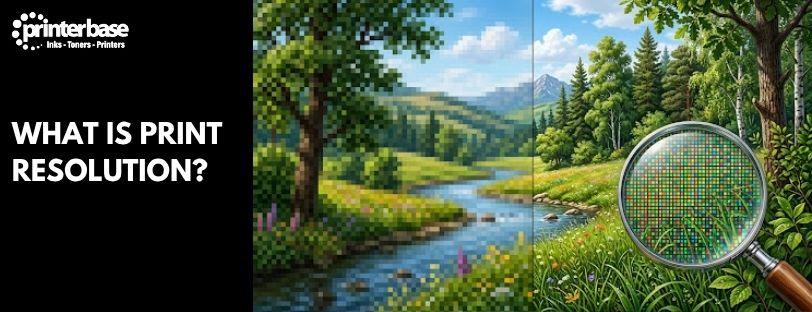
Print resolution is the spec most people skim past when they buy a printer, and the one most likely to be misread. A figure like 4800 x 1200 looks impressive on a product page, but it tells you very little until you know what it measures and what you plan to print.
Resolution decides how sharp your text looks, how smooth the colour transitions in a photo appear and whether a small barcode scans first time. Get it wrong and you either pay for detail you never see or print a logo that looks soft and pixelated.
This guide explains what print resolution and DPI mean, how DPI differs from PPI and what settings such as 600 x 600 and 1200 x 1200 actually deliver. You’ll also see which printers use each resolution, what you need for documents, photos and labels, and the mistakes that spoil prints at any DPI.
What Does Print Resolution Mean
Print resolution is the amount of detail a printer can reproduce in a given area of paper. Printers measure it in DPI, or dots per inch. That’s the number of individual dots of ink or toner the machine can place along one inch of the page.
A 300 DPI print has 300 dots along each inch, a 600 DPI print has 600 and a 1200 DPI print has 1,200. A page has both width and height, so the real difference is bigger than it sounds. For example, at 300 DPI you get 90,000 dots in every square inch. At 600 DPI that becomes 360,000, and at 1200 DPI it reaches 1,440,000.
More dots in the same space means finer detail and smoother edges. Look at a printed letter through a magnifying glass and you’ll see it’s built from dots. At low resolution those dots are big enough to make curves look jagged. At high resolution they’re too small to spot, so your eye reads a clean, continuous line.
What Is the Difference Between DPI and PPI
People swap these two terms constantly, yet they measure different things at different stages of the job.
DPI (Dots Per Inch)
DPI describes the printer. It’s the physical density of dots the machine puts on paper, so it tells you what the hardware can do.
PPI (Pixels Per Inch)
PPI describes the image file. It counts how many pixels sit in each inch of the picture at the size you print it. In other words, a higher PPI gives the printer more information to work with.
How the Two Work Together
Say a photo is 300 PPI in your editing software and you send it to a printer rated at 4800 x 1200 DPI. The file decides how much detail exists. The printer decides how accurately it lays that detail onto paper. In practice the printer builds each pixel from many tiny dots, which is how an inkjet mixes a huge range of colours from a small set of inks.
In fact, neither number works alone. A printer can’t invent detail that the file lacks, and a sharp file loses its edge on a printer with coarse output.
How To Read a Printer Resolution Specification
Spec sheets show resolution as two numbers, such as 1200 x 1200 DPI or 5760 x 1440 DPI. The first figure is the horizontal resolution, which counts dots across the width of the page. The second is the vertical resolution, which counts dots down the length of the page.
Matching figures, like 600 x 600, mean the printer places dots equally densely in both directions. Uneven figures, like 4800 x 1200, mean it positions dots more finely in one direction than the other. Inkjets often work this way because the printhead’s sideways movement can be controlled more finely than the paper feed.
Three Things To Watch For
First, you can’t compare figures across printer technologies. A laser’s 1200 DPI and an inkjet’s 4800 DPI are counted differently, so the bigger number doesn’t make the inkjet four times sharper.
Second, some manufacturers quote optimised or enhanced figures that come from software processing rather than physical dot placement. If the spec sheet separates a native resolution from an enhanced one, trust the native figure.
Third, bigger numbers stop being visible at some point, because the eye can only resolve so much detail. For standard office documents, most people struggle to spot any difference beyond 1200 DPI.
Common Print Resolutions Explained
These are the settings you’ll meet most often, from the 600 x 600 baseline on an office laser to the 9600 x 2400 quoted for top-end inkjets.
| Resolution | Typical Printers | Best For |
|---|---|---|
| 600 x 600 DPI | Office mono and colour laser printers, multifunction devices | Everyday documents, reports, invoices and emails |
| 1200 x 1200 DPI | Higher-spec laser and LED printers, some office inkjets | Small text, line art, logos and client-facing documents |
| 2400 x 1200 DPI | Mid-range and large format inkjets | Display posters and graphics viewed at arm’s length or further |
| 2880 x 1440 DPI | Large format and photo inkjets | Display posters and larger photo prints |
| 4800 x 2400 DPI | Canon A3 professional photo printers | Photography and fine detail |
| 5760 x 1440 DPI | Epson photo printers and A3 professional models | Photography and fine detail |
| 9600 x 2400 DPI | Specialist high-end inkjets | Demanding photographic and artwork reproduction |
What Each Resolution Setting Means in Practice
600 x 600 DPI
This is the office standard. Nearly every laser printer and multifunction device offers 600 x 600 DPI as its baseline, and for text it’s plenty. Black letters at normal reading sizes come out crisp and the printer runs at full speed. It sits behind most everyday office printing.
However, fine detail in images is where it struggles. Gradients can show banding and small photos look flat. So if you mostly print documents, don’t pay extra to avoid it.
1200 x 1200 DPI
Move up to 1200 x 1200 DPI and the printer places four times as many dots in each square inch. Small text, thin lines, logos and table borders look sharper, and graphics in proposals or presentations hold together better. You’ll also find it on higher-spec lasers and LED printers, often as a selectable quality mode.
It usually prints more slowly than 600 DPI because the printer has more data to process. A sensible habit is to keep 600 as the default and switch to 1200 for client-facing work.
2400 x 1200 and 2880 x 1440 DPI
Beyond this point, inkjets take over. These figures appear on large format and mid-range photo printers, including the A2 machines used for display posters. People stand further from a poster than from a photo in their hand, so the printer doesn’t need extreme density to look smooth. In practice, the extra resolution shows in colour gradients, skies, skin tones and shading.
4800 x 2400 and 5760 x 1440 DPI
Professional A3 photo printers sit at this level. Canon’s A3 photo printers commonly quote 4800 x 2400 DPI, while Epson’s A3 models quote 5760 x 1440 DPI. They’re built for photographers, designers and artists who examine prints from close range and expect no visible dot pattern.
However, don’t read a winner into the different figures. The two brands count droplet placement differently, and paper, ink set and file quality matter more than the headline number.
9600 x 2400 DPI
The top of the range. Specialist inkjets quote 9600 x 2400 DPI, but at that density you’re chasing gains most viewers can’t see at normal distance. So treat it as a sign of a high-end machine, not a reason to buy on its own.
Why Does Print Resolution Matter
Resolution shapes four things you’ll notice straight away.
Sharpness and Detail
Higher DPI gives sharper text and graphics. Fine lines, small type and intricate artwork all look clearer, which matters for anything with a lot of fine print.
Photo Quality
Higher resolutions also create smoother colour transitions and reduce the graininess you see in skies, shadows and skin tones.
Professional Appearance
Crisp prints also make marketing materials and business documents look polished. After all, customers judge a brochure or a quote by how it looks in their hand.
What Low Resolution Looks Like
When resolution falls short, you’ll see the problem quickly:
- Pixelation, where individual squares of the image become visible
- Jagged edges on diagonal lines and curved letters
- Blurred or soft images
- Barcodes that fail to scan
- Documents that look amateur next to a competitor’s
What Resolution Do You Need
The right resolution depends on how people will view the printed item. This table shows where to start.
| Application | Recommended Resolution | Notes |
|---|---|---|
| Office documents | 600 DPI printer | Text looks crisp at reading distance |
| Business reports | 600 DPI printer | Switch to 1200 DPI for charts and client copies |
| Marketing materials | 300 PPI image | Print on a 1200 DPI printer or better |
| Photos | 300 PPI image | Use a dedicated photo printer and photo paper |
| Product labels | 203 to 300 DPI | Choose 300 DPI for small text and retail labels |
| Barcode labels | 203 to 300 DPI | Use 300 DPI or more for small, dense codes |
| Fine art prints | 2400 DPI+ printer | Pair with a high-resolution source file |
| Posters and banners | 100 to 150 PPI image | Large outdoor banners can go lower |
Viewing Distance Matters
The further away a print is viewed, the lower the resolution it needs. Business cards get read at close range, so they need high detail. An outdoor banner might get by on 100 PPI because people stand several metres away.
For example, an A1 poster can look fine at a lower resolution than a 6 x 4 inch photo. Your eye can’t separate dots at distance, so the print looks smooth anyway.
Inkjet vs Laser Printer Resolution
Inkjet Printers
Inkjets reach very high resolutions, and many professional photo models exceed 4800 DPI. That helps with photo reproduction, smoother colour gradients and excellent image detail. If images matter more than speed, an inkjet is the natural choice. See our range of inkjet printers category page.
Laser Printers
In contrast, lasers prioritise speed, sharp text and efficient business output. Their maximum DPI ratings are usually lower than a photo inkjet’s, but that rarely matters in an office. For a text-heavy workload, a 600 x 600 laser usually beats a 5760 x 1440 inkjet on speed and cost per page, and the text looks just as sharp at reading distance. Browse our laser printers category page]
Does Higher DPI Always Mean Better Quality
No. Resolution is one factor among several, and print quality also depends on:
- Printer technology
- Ink and toner quality
- Paper type
- Colour management
- The resolution of the original image
A poor image printed at high DPI still looks poor. In the same way, a great image printed on the wrong paper won’t give the result you expected. The best prints combine a high-resolution file, quality media, suitable printer settings and hardware that fits the job.
Print Resolution for Photo Printing
Photos demand far more detail than documents. People hold a photo close, so any grain or visible dot pattern stands out. For the best results:
- Start with the original high-resolution image, not a compressed copy
- Print on proper photo paper
- Choose a dedicated photo printer
- Use the manufacturer’s recommended inks
Many professional photo printers also pair high DPI with larger ink sets. The extra inks widen the colour gamut and make reproduction more accurate, which matters as much as the resolution figure itself. Browse our photo printers.
Print Resolution for Label Printers
Label printers use their own resolution standards. Thermal printers typically come in three options.
| Resolution | Best For | Typical Uses |
|---|---|---|
| 203 DPI | General labelling | Shipping labels, warehouse labels and inventory labels |
| 300 DPI | Smaller text and better quality | Retail labels, product labels and higher-quality barcodes |
| 600 DPI | Very small, detailed labels | Electronics labels, jewellery labels and high-density barcodes |
Go for 300 DPI when a label carries text smaller than about 7 points, or when it’s customer-facing and appearance affects the sale. For labels under 10 mm wide carrying QR codes or Datamatrix codes, 300 to 600 DPI keeps the code scannable.
However, there’s a trade-off. Higher-resolution label printers run more slowly, cost more to buy and cost more to replace a printhead. For instance, a warehouse printing thousands of shipping labels a day gets nothing from 600 DPI, whereas a jeweller tagging tiny items does. Compare models in our label printers category page.
Common Print Resolution Mistakes
Using Web Images for Printing
Images from websites are saved for screens, usually at around 72 PPI. They look fine on a monitor but often print with visible pixelation because they lack the detail a printer needs.
Enlarging Small Images
Stretching a small image spreads its pixels thinner, which lowers the effective resolution. As a result, the image looks blurry and pixelated. To check an image is big enough, multiply your target PPI by the print size in inches. An A4 page (8.27 x 11.69 inches) at 300 PPI needs roughly 2480 x 3508 pixels.
Ignoring File Size
High-resolution files hold more detail, but they’re also larger. Big files also slow down sending, storing and printing. Instead, aim for enough resolution for the size and viewing distance, not the highest figure you can produce.
Choosing the Wrong Printer
A high-volume office printer is a poor fit for photographic work. Meanwhile a specialist photo printer is overkill if you only print letters and invoices. So match the machine to the job.
How To Choose the Right Printer Based on Resolution
Start with five questions:
- What will you print most often?
- How closely will people view the prints?
- Do you need photo-quality output?
- Will you print labels or barcodes?
- How important is print speed?
General Recommendations
For everyday office printing, 600 to 1200 DPI covers almost every need. For marketing materials, aim for a 1200 DPI printer and 300 PPI artwork. Meanwhile, photographers should look at 2400 DPI and above, with 4800 DPI or more for prints viewed at close range. Likewise, professional artwork calls for a high-end photo printer.
Finally, for labels, 203 DPI suits shipping labels, while 300 DPI suits product labels and barcodes. Whatever you print, check the printer’s speed and running costs alongside its resolution.
Conclusion
Print resolution is one of the biggest factors in print quality, but it isn’t the whole picture. DPI tells you how finely a printer can place dots, PPI tells you how much detail your image holds, and viewing distance decides how much of either you’ll actually see. The right printer is the one whose resolution matches the work you do.
For most people, 300 PPI images and a decent 600 or 1200 DPI printer give excellent results on documents and marketing materials. Photographers and designers, however, gain more from a dedicated inkjet with 2400 DPI or above. Label users, meanwhile, should choose between 203 and 300 DPI based on text size and barcode density. So think about what you print, how close people look and how fast you need it, then pick the printer that fits. Do that and you’ll get sharper text, clearer images and a more professional finish every time.
Frequently Asked Questions
What Does DPI Stand For?
DPI stands for dots per inch. It measures how many dots of ink or toner a printer can place within one inch of printed space.
Is 300 DPI Good Enough for Printing?
Yes, for image files. A 300 PPI image is the accepted standard for high-quality commercial printing and marketing materials. The printer’s own DPI rating is a separate figure, and modern office printers exceed what 300 PPI artwork needs.
What Is the Difference Between DPI and PPI?
DPI measures printer output, while PPI measures the resolution of a digital image file. The printer’s DPI shows how finely it can place dots, and the file’s PPI shows how much detail the image holds.
Does a Higher DPI Always Mean Better Print Quality?
No. Image quality, paper type, printer technology and colour accuracy all matter too. In fact, past a certain point the extra resolution isn’t visible to the eye.
What DPI Is Best for Photos?
For professional photo prints, use a high-resolution image and a dedicated photo printer rated for photographic output. Photo printers commonly quote 4800 x 2400 DPI or 5760 x 1440 DPI.
Is 600 DPI Better Than 300 DPI?
For text and fine line detail, yes. A 600 DPI printer produces sharper small type than a 300 DPI one. For photographs, however, most people see little improvement in an image beyond 300 PPI.
What Resolution Should I Use for Labels?
A 203 DPI printer suits general labels such as shipping and warehouse labels. Choose 300 DPI for smaller text and high-quality barcodes, and 600 DPI for tiny labels and high-density codes.
Can I Increase the DPI of a Low-Quality Image?
Changing the DPI setting alone can’t add detail that isn’t in the original image. Software can enlarge an image, but the result will still look soft. Instead, start with the highest-resolution source you can find.
Need Help or More Information ?
If you need any further help or more information, reach out to us by leaving a comment below or through one of the many ways on our Contact Us page.
Alternatively you can contact us by Phone on 0161 308 5800 or by Live Chat on our main Website Monday to Friday and our team will be happy to help or answer with any questions you might have.
You can also find all the various ways to connect with Us at the bottom of this page. Please share this post if you found it helpful.
