

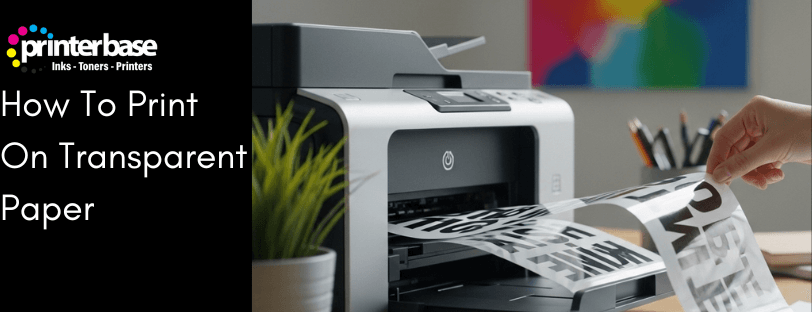
Transparent paper printing is becoming increasingly popular for craft projects, business presentations, overlays, signage and even creative home decor. Yet it can be surprisingly tricky if you don’t know the right film type or printer settings to use.
This guide explains explains exactly how to print on transparent paper using inkjet or laser printers, avoiding smudging, streaking and wasted film. Whether you are a beginner or improving on your previous attempts, this post is designed to give you dependable results every time.
Different Names For Transparent Paper
Transparent paper can go by a few different names depending on where they’re purchased from. Here is a list of the most common phrases.
- Acetate
- Transparencies
- Printable Film
Types Of Transparent Paper
It’s simple to understand the types of transparent sheets. There are two types, laser, or inkjet transparent sheets.
Choosing The Right Transparency Film For Your Printer
Picking the correct transparency film is the biggest factor that determines success and print quality. Using the wrong one would lead to smears, blotches, melted film and possible damage to your printer.
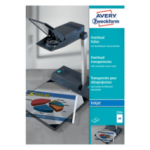
Inkjet Printer Transparency Film
Inkjet printers require coated inkjet transparency film. This film has a lightly textured printable side designed to absorb ink and precent it from sitting on the surface.
How To Identify The Printable Side:
- Feels slightly rough or matte.
- The non-printable side is smoother and glossier.
- Many films include a corner notch to indicate the print side.
Printing on the wrong side will cause pooling, smudging and blurry text, so always check first.
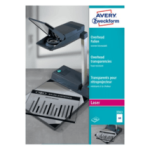
Laser Printer Transparency Paper
Laser printers operate at much higher temperatures, so you must use heat-resistant laser transparency film. Never run standard inkjet film through a laser printer because it can warp or melt inside the machine.
What to look for:
- Packaging labelled “Laser Transparency Film”
- Heat-stable polyester material.
- A smooth, glossy printable surface that bonds with toner rather than ink
Printer Settings For Transparency Prints
Correct printer settings make the difference between a crisp, professional-looking transparency and a streaky mess. These are the settings that work best across most printers.
Set The Media Type
Most modern printers offer a “Transparency”, ” Glossy” or “Speciality Media” option.
Recommended Settings:
- Inkjet: Select Photo Paper, Glossy, or Transparency if available
- Laser: Choose Transparency, Labels, or “Heavy Paper” this slows the printing process for better toner adhesion.
Adjust Print Quality
Using a higher print quality helps ink or toner sit evenly on the film.
- Inkjet: Choose Best or High Quality
- Laser: Select High Resolution or Professional mode
Feed Transparencies One At A Time
Transparent sheets are more slippery than paper and can cause feed errors. Load them individually through the manual feed tray, if your printer has one.
Step-By-Step Guide: How To Print On Transparent Paper
Follow these steps for the best results when printing your transparencies
Selecting suitable transparency paper is important for achieving high-quality prints. Make sure the sheets you purchase are designed for your printer type (inkjet or laser). Look for transparency paper with a coating for the printer you’ll be using, as this will improve the colour vibrancy, prevent smudging and avoid printer damage,
Before printing, make sure your design is prepared correctly. Start by creating or editing your design using applications like Adobe Photoshop, Illustrator, or Microsoft PowerPoint. Ensure that the dimensions of your design match the size of your transparency sheets to avoid any unwanted cropping or stretching during printing.
Transparency sheets are generally designed with a printable side and a non-printable side. Identify the printable side by checking for a rough or textured surface. Load the transparency sheets into the printer’s input tray, ensuring that you follow the recommended orientation specified by the manufacturer. Avoid overloading the tray to prevent paper jams.
For the best results, configure your printer settings appropriately. Access your printer properties menu and select the transparency or acetate printing option. Adjust the print quality settings to the highest available resolution for clear and sharp images. Some printers may have specific transparency-related settings, such as drying time, so consult your printer’s manual for any additional recommendations.
Before printing your entire design, it is wise to perform a test print on a regular sheet of paper. This allows you to ensure that your design appears as intended and also helps in confirming the printer settings are accurate. Make any necessary adjustments to colour, brightness, or alignment before moving forward.
Once you have successfully loaded the transparency sheets, you can start the printing process. Ensure that you have enough ink or toner for the entire job to avoid interruptions and allow the transparencies to dry fully before handling them to prevent smudging or smearing. For multi-page print jobs, wait for each transparency to dry before printing the next one.
Lasers typically dry instantly. However, when printing a transparency on an inkjet printer, the final print may need 1-5 minutes drying time. It’s best not to handle the print at all until drying it complete
Once the transparencies are dry, handle them with care to prevent fingerprints or scratches. If you plan to use them for overhead projections, place them in protective sleeves or store them in a clean, dust-free environment until needed.
Use Cases For Transparent Printing
Transparent paper is incredibly versatile. Popular uses include:
- Craft stencils and DIY projects
- Overlays for planners and scrapbooks
- Screen printing positives
- Product packaging and mock-ups
- Window signs and displays
- Presentations and projection sheets
- Labels, decals and creative branding
Best Printers To Print On Transparent Paper
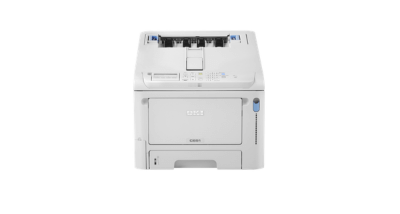
Oki C651 Best Printer for Transparencies
The Oki C651 is the best printer for marketing material, which goes together with transparency printing. Also, being an LED laser printer keeps the risk of melting materials minimal thanks to less heat used in the process.
With exceptional quality and durability and a 100-sheet multipurpose tray (Where the Transparency sheets can be loaded, this printer will have no problems printing all transparencies.
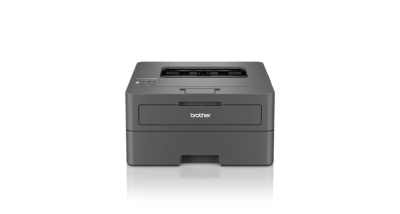
Brother HL-L2445DW Best Cheap Printer for Transparent Sheets
The Brother HL-L2445DW is a small, mono-laser printer. Designed for occasional use with black-and-white documents,
Featuring a single sheet Bypass Tray for 230gsm media, including laser transparency paper.
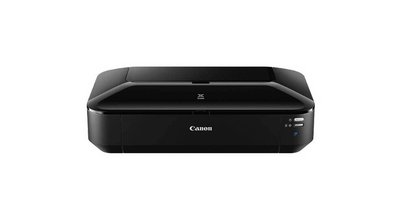
Canon PIXMA iX6850 Best Inkjet Printer for Acetate Sheets
This A3 printer is designed around crafting and printing thicker media. For an inkjet, it offers brilliant quality on Transparent paper thanks to the mix of Dye and pigment-based blacks.
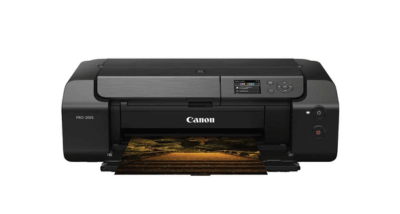
Canon PIXMA PRO-200S Best Inkjet Printer for Transparencies & Crafting
The Canon PIXMA PRO-200 delivers vibrant, accurate colour and excellent performance on transparency film, perfect for craft and design work.
Problems With Transparency Printing
- You’re likely printing on the wrong side of the film
- Reduce ink saturation in your print settings
- Increase drying time
- Clean the Printhead (If you’re using an Inkjet printer)
- Run the printers maintenance cycle
- Check ink or toner cartridge levels
- Make sure there’s no dirt or marks on the drum (If you’re using a laser printer)
- This only happens when inkjet film is used in a laser printer
- Switch to laser-safe transparency sheets
- Make sure the print quality is set to the highest
- Ensure film is designed for your printer type
- Check you’re printing from the manual feed slot
- Use only one transparent sheet at a time
- Calibrate the printer
- Check the colour settings are correct in your design software
- Ensure printer drivers are up to date
- Check design alignment in the software
- Make sure transparency sheets are in the correct printer tray
Summary
Printing on transparent paper is simple once you understand the correct film types and printer settings. Whether you want crisp professional presentations or vibrant craft projects, following the steps in this guide ensures consistent, high-quality results every time. With the right film, printer configuration and a little practice, you will be able to create flawless transparent prints that look sharp, clean and professional.
Need Help or More Information ?
If you need any further help or more information, reach out to us by leaving a comment below or through one of the many ways on our Contact Us page. Alternatively you can contact us by Phone on 0161 308 5800 or by Live Chat on our main Website Monday to Friday and our team will be happy to help or answer with any questions you might have. You can also find all the various ways to connect with Us at the bottom of this page. Please share this post if you found it helpful.
