
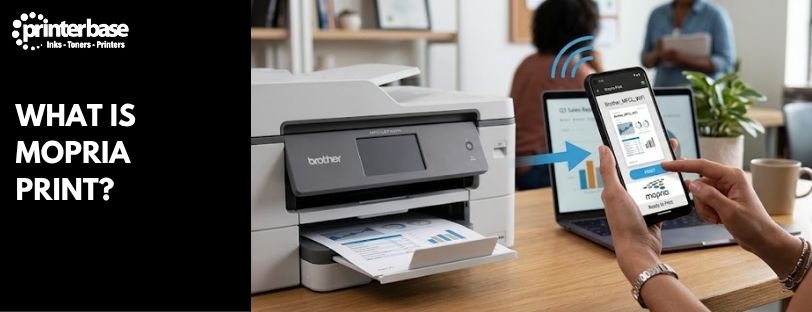
Mopria Print is the reason your Android phone or Windows laptop can usually find a nearby printer and print to it without you installing a single app or driver. It’s a driverless printing standard built by the Mopria Alliance, a group of the printer industry’s biggest names, and it now covers more than 120 million certified printers worldwide. This guide explains what Mopria does, how it works on Android and Windows, and how to check whether your own printer supports it.
What Is Mopria Print?
Mopria is a cross-platform printing (and scanning) standard developed by the Mopria Alliance, whose members include Brother, Canon, Epson, HP, Kyocera, Konica Minolta and Xerox among others. A Mopria certified printer works with any Android device or Windows PC straight out of the box, with no manufacturer-specific app and no driver download.
The certification programme has grown fast. There are now more than 10,000 certified printer and scanner models from over 24 manufacturers, and Mopria print technology sits behind roughly 5 billion Android devices through the Mopria Print Service and Android’s own Default Print Service. If you’ve bought a printer from Brother printers category page, Canon printers category page, Epson printers category page, HP printers category page, Kyocera printers category page or Xerox printers category page in the last few years, there’s a good chance it’s already certified.
How Does Mopria Print Work?
Mopria Print Service works as a universal print driver. Instead of every printer brand needing its own app, Mopria converts whatever your app sends to print into a format the target printer understands, then delivers the job wirelessly, either over your local Wi-Fi network or directly over Wi-Fi Direct if the printer supports it.
Finding the printer happens automatically. Mopria uses mDNS discovery to scan the network for compatible devices, so a printer typically shows up in your print menu within a few seconds of opening it. Once you’ve selected a printer and confirmed your settings, the job is sent using TLS encryption, which keeps the data secure in transit between your device and the printer.
One limit worth knowing: Mopria Print Service relies on wireless connections only. USB, USB-OTG, Bluetooth and public Wi-Fi hotspots aren’t supported, so both your device and the printer need to be on the same network, or connected directly via Wi-Fi Direct.
How To Print From Android Using Mopria
Most Android phones and tablets sold in the last few years come with a Mopria-powered print service already installed, so there’s often nothing to set up before your first print.
Printing From An Android App
- Open the app you want to print from.
- Tap the Share icon, or look for a Print option in the app or menu button.
- Select your printer from the list. Android finds nearby Mopria certified printers automatically.
- Adjust copies, page range, colour, duplex and other settings as needed.
- Tap Print.
Gmail, Google Drive, Google Photos and Chrome all support printing this way already, and most apps in the Play Store include a Print option somewhere in their share menu. If your printer doesn’t show up, check that your phone and the printer are on the same wireless network first. If it’s still missing, download the Mopria Print Service app directly from Google Play, since not every device ships with it as standard.
How To Print From Windows Using Mopria
Windows has supported Mopria certified printers since the October 2018 Update, and newer builds extend this through Windows protected print mode (WPP). When you connect a new printer and Windows can’t find a manufacturer driver through Windows Update, it falls back to installing Mopria print support automatically, so the printer still works without any manual driver hunting.
Setting Up A Printer On Windows
- Connect your printer to the same network as your PC, or plug it in directly if it’s a wired connection Windows Update supports.
- Open Settings, then go to Bluetooth & devices > Printers & scanners.
- Select Add device and choose your printer from the list.
- Windows installs the correct driver automatically. Where no manufacturer driver is available, Mopria support takes over instead.
- Print as normal from any application by selecting File > Print and choosing your printer.
You can still install a driver directly from the manufacturer afterwards if you want access to advanced features specific to that model. Mopria doesn’t replace manufacturer drivers, it just means you’re never stuck without one.
Mopria Print Service vs The Android Default Print Service
Android also has a built-in Default Print Service that uses Mopria’s core print technology, so it works even if you’ve never installed anything. It covers the basics, but the full Mopria Print Service app unlocks a longer list of features, particularly for offices with finishing and security requirements.
| Feature | Android Default Print Service | Mopria Print Service |
|---|---|---|
| Colour / black & white | Yes | Yes |
| Copies, page range, orientation | Yes | Yes |
| Two-sided (duplex) printing | Yes | Yes |
| Media type selection | No | Yes |
| Tray selection | No | Yes |
| Stapling & finishing options | No | Yes |
| User authentication & PIN printing | No | Yes |
| Accounting features | No | Yes |
| Wi-Fi Direct printing | Android 9+ | Yes |
| Share-to-print for Office & text files | No | Yes |
For most home use, the Default Print Service is all you need. If you’re printing in an office with authentication, PIN release, or finishing options like stapling and folding, the full Mopria Print Service app is worth installing.
How To Check If Your Printer Supports Mopria
The most reliable way to check is the Mopria Alliance’s own certified products list at mopria.org, which is searchable by brand and model. Most printers Printerbase has stocked from Brother, Canon, Epson, HP, Kyocera, Oki and Xerox over the last several years are already certified, so it’s worth checking the spec sheet on the product page before assuming otherwise. You can also look for the Mopria certification logo on the box, or check the printer’s embedded web page for a Mopria or driverless printing setting.
If you’re buying new and want Windows compatibility guaranteed out of the box, our Windows Compatible Printers category page is filtered to devices that work this way.
Mopria Print vs Apple AirPrint: What’s The Difference?
Mopria and Apple AirPrint solve the same problem for different platforms. AirPrint is Apple’s own driverless printing standard, built into iOS and macOS for iPhone, iPad and Mac. Mopria does the same job for Android and Windows. Both work the same way in practice: connect your device and the printer to the same wireless network, and the printer shows up automatically with no drivers required.
Most manufacturers build to both standards at once, so a printer that’s Mopria certified is usually AirPrint compatible too, and vice versa. If your household or office runs a mix of Apple, Android and Windows devices, check both certifications on the spec sheet rather than assuming one covers everything.
Troubleshooting Common Mopria Print Problems
Printer Not Appearing In The List
Confirm your device and the printer are on the same wireless network. If they aren’t, and the printer supports Wi-Fi Direct, connect that way instead. Restarting both the printer and your router often resolves discovery issues too.
Printer Greyed Out
A greyed-out printer has usually been disconnected from the network, or is powered off. Turn it back on and reconnect it to Wi-Fi before trying again.
Printer Listed Twice
This happens when more than one print service is installed, or when the printer is discoverable both over the network and via Wi-Fi Direct at the same time. Disabling one print service, or turning off Wi-Fi Direct discovery in the app’s settings, usually fixes it.
Print Job Stuck Or Failing
Check the printer has paper, ink or toner isn’t empty, and there’s no error showing on its control panel. An outdated firmware version can also cause dropped jobs, so it’s worth checking for updates if the problem persists.
Frequently Asked Questions
What Is Mopria Print?
Mopria is a driverless printing standard supported natively by Android and Windows. It lets you print to any Mopria certified printer without installing a manufacturer app or driver first.
Do I Need To Install Anything To Use Mopria?
Often not. Many Android devices ship with a Mopria-powered print service built in, and Windows installs Mopria support automatically when a manufacturer driver isn’t available. If your Android device doesn’t have it, you can download the Mopria Print Service app free from Google Play.
Is Mopria The Same As Apple AirPrint?
No, but they do the same job for different platforms. AirPrint covers iPhone, iPad and Mac, while Mopria covers Android and Windows. Most modern printers support both standards at once.
Which Printer Brands Support Mopria?
Brother, Canon, Epson, HP, Kyocera, Konica Minolta, Xerox and most other major manufacturers are Mopria Alliance members, and the majority of printers they’ve released in recent years are certified.
Can I Use Mopria Over USB?
No. Mopria Print Service relies on wireless connections, either your local Wi-Fi network or Wi-Fi Direct. USB, USB-OTG and Bluetooth connections aren’t supported.
My Printer Shows Up Twice In The Printer List. Why?
This is usually caused by having more than one print service installed, or by the printer being visible both on your Wi-Fi network and via Wi-Fi Direct at the same time. Turning off one of the two discovery methods should stop the duplicate listing.
How Do I Know If My Printer Is Mopria Certified?
Check the certified products list at mopria.org, look for the Mopria certification logo on the printer’s box, or check the spec sheet on the printer’s product page.
Need Help or More Information ?
If you need help choosing a printer that works seamlessly with your Android or Windows devices, our team is on hand to help. Visit our Contact Us page, call us on 0161 308 5800, or use Live Chat during business hours.