
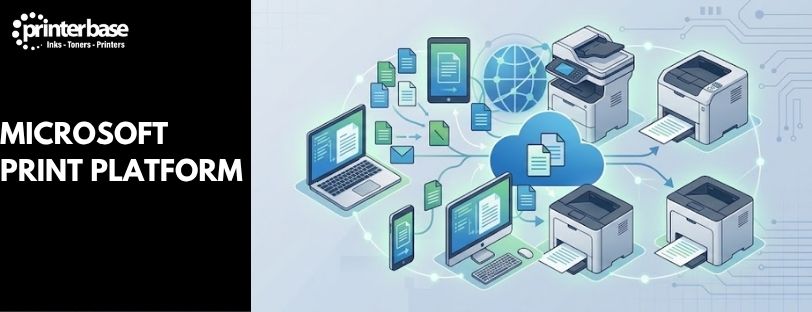
Printing in Windows is going through one of its biggest changes in decades. For nearly 30 years, Windows has relied on thousands of manufacturer-specific printer drivers to talk to printers, one written for almost every model ever sold. That model is being retired. Microsoft is replacing it with a standards-based approach built around security, reliability and easier device management.
You’ll see this shift described under several different names: Windows Ready Print, Windows Protected Print Mode, Microsoft Universal Print, and Print Support Apps. They aren’t separate products competing for attention. They’re different pieces of the same strategy, and this guide treats “Microsoft Print Platform” as a convenient way to talk about all of them together, not a single thing you install or buy. If you manage printers for a business, work from a home office, or just want to know whether your printer will still work in a couple of years, this article explains what’s changing, why, and what it means for you.
What Is Microsoft’s Print Platform?
Microsoft’s long-term goal is straightforward: make printing on Windows work the same way regardless of who made your printer, without installing a driver written specifically for that device. Instead of pulling in bespoke software from each manufacturer, Windows talks to the printer using open standards that most modern devices already support.
This shift is designed to deliver several things at once. Security improves because Windows isn’t trusting thousands of third-party drivers, each a potential weak point, with direct access to the operating system. Deployment gets simpler because IT teams no longer need to source, test and push out a different driver package for every printer model in the building. Compatibility improves too, particularly on newer architectures like ARM-based laptops, which many older drivers were never built to support. And for organisations already moving services to the cloud, this fits neatly alongside cloud-managed identity, devices and file storage.
None of this happens overnight. Microsoft is phasing the change in gradually, over several years, and existing printers aren’t simply cut off.
Why Is Microsoft Moving Away From Traditional Printer Drivers?
Traditional printer drivers have done their job for decades, but they come with real downsides. A driver runs with deep access to Windows, so a poorly written or outdated one is a genuine security risk, and print drivers have been a recurring source of vulnerabilities over the years. Keeping that many drivers current is also a maintenance burden, with IT teams managing a sprawling library of manufacturer packages, each on its own update cycle. Compatibility suffers too: drivers written for traditional x86 Windows don’t always run cleanly on newer architectures, which matters more as ARM-based Windows devices become common.
Microsoft’s answer is to lean on standards-based communication instead, chiefly the Internet Printing Protocol (IPP), which is already built into Windows and widely supported by manufacturers. Rather than maintaining a driver for every device, Windows can talk to any IPP-compatible printer using the same built-in class driver. Microsoft has published a formal transition roadmap covering this move, which we cover in more detail further down.
Windows Ready Print
Windows Ready Print is Microsoft’s preferred method for getting Windows and printers talking to each other without a manufacturer-specific driver. It uses standards, mainly IPP for printing and eSCL for scanning, that are already built into Windows and supported by most modern network printers.
Because it doesn’t depend on a driver written for your exact model, Windows Ready Print cuts down on the maintenance and compatibility problems of the old approach. It works particularly well with Mopria-certified devices, since Mopria is the industry body that defines the IPP and eSCL standards it relies on. Windows Ready Print is also the foundation that Windows Protected Print Mode builds on, which is why the two are usually mentioned together. We’ve covered Windows Ready Print in more depth, including how to check whether your printer supports it, in our dedicated guide.
Windows Protected Print Mode
Windows Protected Print Mode is an optional security feature that takes Windows Ready Print a step further. Switch it on, and Windows will only print using modern, standards-based technologies. Traditional third-party drivers are locked out entirely while the mode is active, closing off one of the more persistent routes attackers have used to compromise a Windows machine through its print subsystem. Microsoft recommends it for organisations ready to commit to the Windows Ready Print ecosystem, particularly those with mostly Mopria-certified, network-connected printers already in place. It isn’t something to switch on without checking first, though. Because it disables non-standard drivers outright, any device or workflow still depending on one will stop working the moment it’s enabled. We go through what to check before turning it on in our full Windows Protected Print Mode article.
Microsoft Universal Print
Universal Print is Microsoft’s cloud-based print management service, and it solves a different problem to Windows Ready Print. Where Windows Ready Print governs how a PC talks to a printer sitting in front of it, Universal Print governs how printers get managed, shared and deployed across an entire organisation, without a physical print server involved. Traditional print servers need hardware, maintenance and someone to manage them. Universal Print replaces that with a cloud service that integrates directly with Microsoft 365 and Azure, using the same identity and access controls organisations already use for email and Teams. Printers are registered once in the cloud, then assigned to users and groups centrally from anywhere, which makes the biggest difference for hybrid and distributed organisations with several sites or remote staff. Universal Print and Windows Ready Print work well together but aren’t the same thing. You can read more about how Universal Print works and whether it suits your business in our dedicated article.
Print Support Apps (PSAs)
Print Support Apps, or PSAs, are Microsoft’s answer to a fair question: if drivers are going away, how do manufacturers still offer advanced features on their printers? A basic IPP connection covers standard printing well, but it doesn’t naturally expose extras like finishing options, stapling, or a manufacturer’s own paper-handling settings. A PSA is a lightweight app, built to Microsoft’s modern app architecture, that plugs into the driverless print pipeline instead of a traditional driver. It lets a manufacturer add custom settings screens, print previews and other device-specific features on top of the standard IPP connection, without reintroducing the security and maintenance drawbacks of a full legacy driver. As Microsoft’s driver transition progresses, PSAs are expected to become the standard way manufacturers add anything beyond basic printing. We’ll be covering PSAs, and what they mean for specific printer brands, in a future dedicated article.
Will My Existing Printer Still Work?
This is usually the first question anyone asks once they hear Microsoft is changing how printing works, and the honest answer is reassuring for most people. Most modern network-connected printers will carry on working exactly as they do now. Nothing about this transition switches printers off or forces an immediate change. Mopria-certified printers are particularly well placed, since they already speak the IPP and eSCL standards the new platform is built on. Check your printer’s spec sheet, or the Mopria certified products list, if you aren’t sure whether yours qualifies. Older devices, or ones that rely heavily on a manufacturer’s own driver for features beyond basic printing, such as advanced finishing or bundled scanning software, are more likely to notice a difference. Some may still need a manufacturer driver for the full feature set, and certain advanced functions may continue to depend on vendor-supplied software rather than Windows’ built-in support. If you’re considering Windows Protected Print Mode specifically, review your printer fleet’s compatibility first, since that mode disables non-standard drivers outright rather than phasing them out gradually.
Potential Challenges and Considerations
The changes here are gradual rather than disruptive, but a handful of situations are worth thinking about ahead of time. Legacy printer environments, where older devices depend entirely on manufacturer drivers, are the most exposed. So are manufacturer-specific workflows built around a vendor’s own software, particularly advanced finishing features like booklet-making or multi-tray stapling that a basic IPP connection doesn’t cover. Print accounting solutions and device management software built to hook into the traditional driver model may also need a vendor update to work with the new architecture, and specialist scanning workflows are worth checking too on devices that aren’t Mopria-certified. To be clear, this doesn’t mean most businesses are heading for compatibility problems. It means the businesses most likely to notice something are the ones leaning hardest on manufacturer-specific drivers and software rather than standard printing and scanning. If that doesn’t describe your setup, there’s little reason for concern in the short term.
Microsoft’s Printer Driver Transition Timeline
Microsoft has published a specific timeline for this transition, and it’s worth having the dates in one place.
| Date | Milestone |
|---|---|
| September 2023 | Microsoft announces its end-of-servicing plan for legacy third-party printer drivers on Windows. |
| 15 January 2026 | For Windows 11 and Windows Server 2025 and newer, no new printer drivers will be published to Windows Update. Existing drivers may still be updated, but only on an approved, case-by-case basis. |
| 1 July 2026 | Windows begins prioritising its own built-in IPP class driver over third-party printer drivers when both are available. |
| 1 July 2027 | Except for approved security fixes, third-party printer driver updates will no longer be distributed through Windows Update. |
Spread over four years, this is a gradual phase-out rather than a sudden removal of printer support. Existing drivers already installed continue working after each milestone passes. What changes is how new drivers get approved and distributed, and which driver Windows reaches for first.
Conclusion
Microsoft’s direction for printing in Windows is clear: fewer manufacturer-specific drivers, more standards-based communication through IPP and eSCL, stronger built-in security, simpler deployment for IT teams, and cloud-enabled management through Universal Print. Windows Ready Print, Windows Protected Print Mode and Print Support Apps are the building blocks Microsoft is using to get there. For most people reading this, the practical impact in the short term is small. Modern, Mopria-certified printers already suit this new approach, and Microsoft is rolling the rest out over several years rather than switching anything off overnight. If you manage a fleet of older or manufacturer-driver-dependent devices, it’s worth taking stock now rather than waiting for a milestone date to force the issue. Explore our dedicated guides to Windows Ready Print, Windows Protected Print Mode and Universal Print for a closer look at each one.
Frequently Asked Questions
What Is The Microsoft Print Platform?
“Microsoft Print Platform” isn’t a single product you install. It’s a convenient way to describe Microsoft’s overall direction for printing in Windows, covering Windows Ready Print, Windows Protected Print Mode, Universal Print and Print Support Apps together.
Do I Need To Do Anything Right Now?
For most home and business users, no. Existing printers and drivers continue working as normal. The changes are rolling out gradually through 2026 and 2027, and IT teams have time to plan ahead rather than react to a sudden change.
Will My Printer Stop Working?
Almost certainly not because of this transition alone. Most modern network-connected printers, especially Mopria-certified ones, are already compatible with the new standards. Older devices that rely heavily on manufacturer drivers for advanced features are the ones most likely to need attention.
What’s The Difference Between Windows Ready Print And Universal Print?
Windows Ready Print covers local communication between a Windows PC and a printer, using standards like IPP and eSCL. Universal Print is a separate, cloud-based service for managing and deploying printers across an organisation, replacing traditional print servers.
Should I Turn On Windows Protected Print Mode?
Only after checking your printer fleet’s compatibility. It’s an optional feature that blocks non-standard drivers entirely, so any device or workflow still relying on one will stop working as soon as it’s switched on. Microsoft recommends it for organisations ready to commit to the Windows Ready Print ecosystem.
What Is A Print Support App?
A Print Support App, or PSA, is a lightweight modern app that lets printer manufacturers add advanced features, such as custom settings or print previews, on top of a standard driverless IPP connection, without needing a traditional driver.
Is This The End Of Printer Drivers Altogether?
Not immediately. Existing third-party drivers keep working, and manufacturers can still provide their own installation packages. What’s changing is which driver Windows prefers by default, and how new drivers get approved and distributed going forward.
Need Help or More Information ?
If you have any questions about choosing the right printer for your business, get in touch with our team via our Contact Us page, call us on 0161 308 5800, or use Live Chat during office hours.