

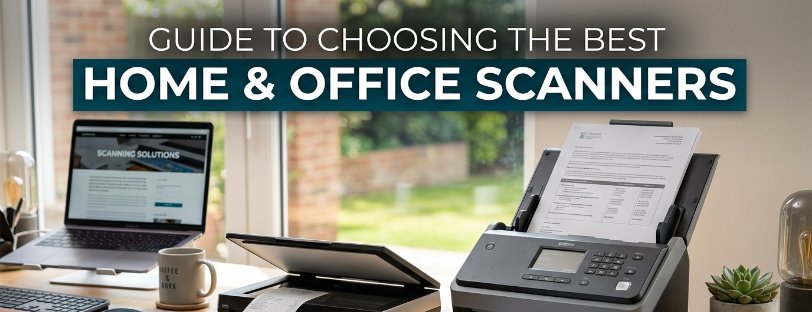
Buying a scanner sounds simple until you’re staring at a spec sheet full of numbers that don’t mean much on their own: 1200 x 2400 dpi, 40 ppm duplex, 50-sheet ADF. Get the wrong one and you’ll end up feeding paper through by hand, waiting for slow scans, or fighting software that mangles your file names. This guide covers what actually matters, so you spend your money on the features you’ll use rather than ones that look good on a box.
Start with How You’ll Actually Use It
The right scanner depends far more on your workload than your budget. Someone digitising a shoebox of old family photos once a year needs a completely different machine to an accountant scanning 200 invoices every Monday morning. Before you look at a single spec, answer three questions: how many pages do you scan in a typical session, are they single-sided or double-sided, and do you need to scan anything other than plain A4 paper?
Once you know the answer, the type of scanner you need narrows quickly.
The Four Main Types of Scanner
Most scanners on the market fall into one of four categories. Each is built around a different trade-off between speed, flexibility and desk space.
| Type | Best For | Typical Speed | Watch Out For |
|---|---|---|---|
| Flatbed | Photos, receipts, passports, book pages, fragile documents | Single page at a time, 10-30 seconds per scan | Slow for multi-page jobs; no automatic feeding on cheaper models |
| Sheetfed / document | Multi-page paperwork, invoices, contracts, archiving | 20-40 ppm, faster with duplex | Struggles with damaged, creased or oddly sized originals |
| All-in-one printer | Occasional scanning alongside printing, low volume | Usually 8-15 ppm, no ADF on budget models | Scanning is secondary; specs are weaker than dedicated scanners |
| Portable / mobile | Working away from a desk, field sales, site visits | 8-15 ppm, battery powered | Smaller ADF capacity, often single-sided only |
Flatbed Scanners
A flatbed scanner has a glass panel you lay the document face-down on, much like a photocopier. That’s what makes them the only sensible choice for anything that can’t go through a feeder: bound books, passports, fragile or torn documents, and photographic prints or negatives. Flatbeds also tend to produce the sharpest results for photo work because the original stays perfectly still during the scan.
The trade-off is speed. Every page has to be lifted, placed and closed under the lid manually, so flatbeds are a poor fit for anyone scanning more than a handful of pages at a time.
Sheetfed and Document Scanners
Sheetfed scanners pull paper through an automatic document feeder (ADF), scanning each side as it passes the sensor. This is the format to buy if you’re clearing a backlog of paperwork, digitising invoices, or running a small office that still generates a lot of paper. Load a stack of 30 or 50 sheets, hit scan, and walk away.
The catch is that sheetfed models don’t cope well with anything other than standard, undamaged paper. Creased receipts, torn pages or anything thicker than a boarding pass can jam the feeder.
All-in-One Printers
If you already need a printer and only scan a handful of pages a month, buying a dedicated scanner on top is often unnecessary. A decent multifunction printer covers print, scan and copy from one machine, saving desk space and cash. The scanning hardware inside most all-in-ones is simpler than a dedicated unit though: expect lower speeds, a smaller or absent ADF on budget models, and less sophisticated scan-to-cloud software. If scanning is an occasional task rather than a daily one, this compromise is usually fine.
Portable and Mobile Scanners
Portable scanners are built for people who don’t work at a fixed desk: field engineers, sales reps, journalists, or anyone who needs to digitise documents on site. They run on USB power or an internal battery, weigh under a kilogram, and scan almost instantly with no warm-up. You give up capacity for that convenience. ADFs on portable models rarely hold more than 20 sheets, and duplex scanning is less common than on desktop units.
The Specs That Actually Matter
Scanner marketing loves big numbers. Here’s which ones are worth paying for and which you can ignore.
Resolution (DPI)
Dots per inch measures how much detail a scanner captures. For text documents you’re going to OCR (turn into searchable, editable text), 300 dpi is genuinely all you need; going higher just creates bigger files without improving accuracy. Save the higher settings, 600 dpi and above, for photographs, artwork, or documents with very small print you need to zoom into later. Anything beyond 1200 dpi is aimed at professional photo and film scanning, not office paperwork.
Automatic Document Feeder (ADF) Capacity
This is how many sheets you can load before you have to refill the tray. A 20-sheet ADF is fine if you scan a handful of letters a week. If you’re processing invoices, expense claims or contracts daily, look for 50 sheets or more, so you can load a stack and get on with something else while it works through.
Duplex Scanning
Duplex scanners capture both sides of a page in a single pass. If your paperwork is regularly double-sided, this isn’t a nice-to-have, it roughly halves your scanning time compared with flipping every sheet manually. Check whether duplex is genuine single-pass (two sensors, one pass) or the slower method of scanning one side, then reversing the page.
Scan Speed (ppm)
Pages per minute tells you throughput, but the number on the box is usually measured at 300 dpi in black and white on plain A4. Scanning in colour, at higher resolution, or with OCR switched on will slow things down, sometimes by a third or more. Treat the advertised ppm figure as a best case, not a guarantee.
Software Matters as Much as Hardware
A fast scanner with clunky software is still a frustrating scanner. Before buying, check what’s included:
OCR (optical character recognition) converts a scanned image into searchable, editable text. If you’re archiving contracts or invoices and want to search them later by content rather than filename, OCR isn’t optional.
Scan-to-cloud lets you send documents straight to Dropbox, OneDrive, Google Drive or email without saving a local copy first. Handy for anyone working across multiple devices.
TWAIN and WIA drivers are the standards that let a scanner talk to third-party software like Adobe Acrobat or accounting packages. Almost every scanner supports both, but it’s worth confirming if you rely on a specific piece of software for document management.
Blank page and multi-feed detection automatically drops blank sheets from your scanned batch and flags when the feeder has pulled two pages at once, both common annoyances on high-volume jobs.
Connectivity: USB, Wi-Fi or Network
A USB connection is the simplest option: plug it into one computer and go. It’s fine for a single desk but inconvenient if several people need to use the same scanner. Wi-Fi and network-connected scanners let anyone on the network scan directly to a shared folder or their own device, which is worth the extra cost in a small office with more than two or three users. Some network scanners can also scan straight to a USB stick or email address without a computer involved at all, useful if the machine sits in a shared space like a reception desk.
Verdict: Picking The Best Scanner Type For Your Needs
For most home users, a decent all-in-one printer or a compact flatbed covers everything you need. There’s little reason to spend more unless you’re digitising a large personal archive in one sitting.
Offices with regular paperwork, particularly anywhere handling invoices, HR documents or contracts get the most value from a dedicated sheetfed scanner with duplex and a 50-sheet-plus ADF. The time saved on a 50-page stack of invoices or contracts versus a 10-page ADF adds up fast across a working week but will pay for itself within a few weeks with the right scanner.
If your work regularly involves photographs, bound documents or anything too fragile for a feeder, a flatbed earns its place on the desk regardless of what else you buy.
Whichever type suits your workload, check the ADF capacity, duplex support and included software before you buy. Those three factors matter more than resolution for almost everyone.
Frequently Asked Questions
What Resolution Do I Need for Scanning Documents?
300 dpi is standard for text documents and OCR. Only go higher, 600 dpi or more, for photographs or documents with very fine print.
Is a Flatbed or Sheetfed Scanner Better for a Home Office?
It depends on what you’re scanning. Choose sheetfed if you mainly deal with standard paperwork in volume. Choose flatbed if you regularly scan photos, books, or fragile and irregularly sized items.
Do I Need Duplex Scanning?
Only if your documents are commonly printed on both sides. If most of what you scan is single-sided, duplex won’t save you much time and isn’t worth paying extra for.
Can I Use My Printer’s Scanner Instead of Buying a Separate Scanner?
For light, occasional use, yes. If you’re scanning daily or in batches, a dedicated scanner will be faster and more reliable, with a bigger ADF and better software.
What’s the Difference Between TWAIN and WIA Drivers?
Both let scanners communicate with software on your computer. TWAIN is the older, more widely supported standard, particularly for professional software like Adobe Acrobat. WIA is Microsoft’s built-in Windows standard. Most scanners support both, so it rarely affects your buying decision.
How Many Pages Should the ADF Hold?
For occasional home use, 20 sheets is enough. For regular office scanning, look for at least 50 sheets so you can load a full stack and walk away.
Are Portable Scanners Worth Buying for Office Use?
Only if you genuinely need to scan away from a desk. For a fixed office setup, a desktop sheetfed or flatbed scanner will be faster and hold more paper per load.
Need Help or More Information ?
If you need any further help or more information, reach out to us by leaving a comment below or through one of the many ways on our Contact Us page.
Alternatively you can contact us by Phone on 0161 308 5800 or by Live Chat on our main Website Monday to Friday and our team will be happy to help or answer with any questions you might have.
You can also find all the various ways to connect with Us at the bottom of this page. Please share this post if you found it helpful.