
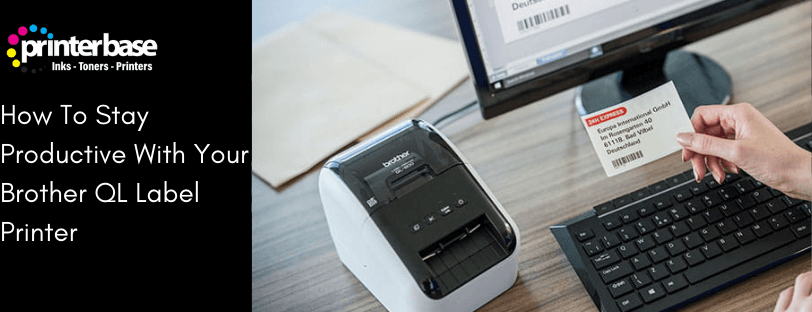
The Brother QL range of label printers is designed to make everyday tasks faster, easier and far more organised. Whether you’re labelling files, shipping parcels, organising stock, managing office supplies or naming items at home, staying productive with your Brother QL label printer means making the most of its features.
In this guide, we’ll be giving you some great tips to help stay productive with your Brother QL label printer. We’ll be updating this post regularly with the latest information.
What Are Brother DK Labels?
Brother DK labels are label rolls designed for use with Brother QL label printers. They use direct thermal printing technology, which means there’s no need for ink, toner or ribbon and every label prints cleanly and efficiently.
There’s two types of Brother DK labels. Dire-cut labels, which come in pre-set sizes ideal for various uses such as address labels, file organisation, folder tabs, signage and ID badges. The other type is continuous rolls, which allow you to cut the labels to any length, making them perfect for signs, shelving, name tags and custom-sized labels.
DK labels come in a range of colours and materials, including white, yellow, clear and specialist options like black and red printing. This makes them suitable for everything from everyday office admin to more specific needs such as safety messages, stock identification and visitor badges.
Please Note:
Black and red labelling can only be printed on specific label rolls, using the Brother DK-22251, a 62mm continuous paper label roll
How To Make Name Badges with Brother iPrint & Scan App
This video explains how to make name badges using the Brother iPrint & Scan app, available on the Apple Appstore and Google Play Store.
Brother P-Touch Editor App For Windows and Mac
Brother P-Touch Editor is the official label-design software used with Brother QL and PT label printers. It gives you a simple, flexible way to create high-quality labels for almost any task. With an easy-to-use interface, it lets you add text, barcodes, logos, images and custom layouts, making it ideal for both office organisation and professional labelling. You can also save your favourite templates, pull data from spreadsheets and print directly from your computer for fast, consistent and accurate results ever time.
How to Create Barcodes Using Brother P-touch Editor
Creating barcodes in Brother’s P-touch Editor is a simple but powerful way to streamline your workflow. With built-in barcode creation tools, the software allows you to generate clear, scannable barcodes for inventory, stock management, shipping and office organisation. You can choose from a range of common barcode formats, customise the size and layout and even pull data directly from spreadsheets for batch printing. whether you are labelling products, archiving files or managing assets, P-touch Editor makes professional barcode creation quick, accurate and easy.
Conclusion
Brother QL label printers offer a fast, reliable and versatile way to stay organised at home or in the workplace. By making the most of tools like the iPrint & Scan, or P-touch Editor apps, you can create professional labels, name badges, barcodes and more with ease. As we continue to update this guide with new videos and helpful insights, you can stay up to date and get all the latest tips for the best performance with your Brother QL Label Printer
Need Help or More Information ?
If you need any further help or more information, reach out to us by leaving a comment below or through one of the many ways on our Contact Us page. Alternatively you can contact us by Phone on 0161 308 5800 or by Live Chat on our main Website Monday to Friday and our team will be happy to help or answer with any questions you might have. You can also find all the various ways to connect with Us at the bottom of this page. Please share this post if you found it helpful.
