
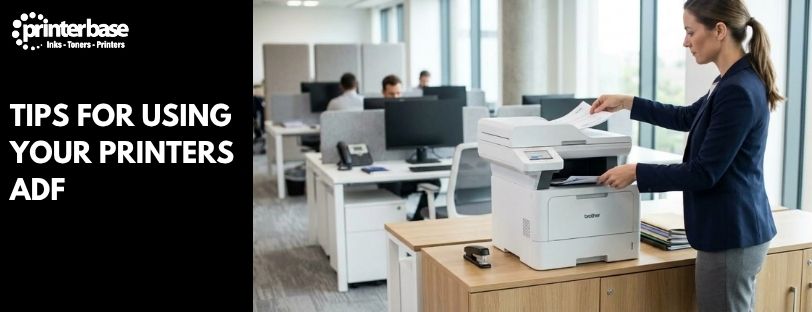
If you scan, copy or fax more than the odd single page, the Automatic Document Feeder is probably the hardest-working part of your printer. Load a stack, press start, and it pulls each sheet through on its own instead of you lifting the lid every time. Used well, it saves a genuine amount of time. Used carelessly, it jams, skews your scans, or feeds two pages at once when you needed one. Here’s how to get it right.
How Your ADF Actually Works
Inside the feeder tray sits a pick roller and a separation pad, working together so only one sheet peels off the stack at a time. As each page moves through, it passes an imaging sensor that captures the scan, copy or fax data before the sheet exits into the output tray, and the cycle repeats until the stack is empty. Better machines add an ultrasonic sensor that listens for the telltale sound of two sheets moving together and stops the job before a double feed ruins your scan.
Some ADFs are simplex, meaning they only read one side of the page. Others are duplex, and within that group there’s a real difference worth knowing. A reversing duplex ADF scans one side, flips the sheet internally, then scans the second side, which takes a little longer. A single-pass duplex ADF has two scanning heads and reads both sides as the page goes through once, so it’s noticeably quicker on double-sided stacks.
Prepare Your Documents Before You Scan
A minute of preparation avoids most ADF problems. Go through the stack and pull out every staple, paper clip and sticky note first, even a small one can scratch the glass or jam the rollers. Fan the pages before loading them, the same way you’d fan a deck of cards, to separate sheets that have stuck together from static or humidity. Straighten any bent corners, and make sure the paper sits squarely against the width guides rather than at an angle or bowed in the middle. None of this takes long, but skipping it is the single most common cause of a jammed or skewed scan.
Don’t Overload the Feeder
Every ADF has a maximum capacity, and pushing past it is asking for a jam. As a general rule, don’t load more than 15 to 20 sheets of standard paper into a typical home or small-office feeder, though it’s worth checking your specific model since capacity varies. A dedicated document scanner such as the Brother ADS-2400N manages 50 sheets in one load, while a basic multifunction printer’s ADF often holds far fewer. Loading right up to the maximum also increases the odds of a double feed, so if you’re getting misfeeds regularly, try running smaller batches through instead.
Skip Damaged, Creased or Odd-Sized Paper
Torn, frayed or heavily creased paper doesn’t belong in the ADF. Rollers grip a sheet along its edges, and if that edge is ragged or folded, the page can catch, jam, or feed in crooked and give you a skewed scan. The same goes for spiral-bound pages, anything held together with tape, and paper that’s thicker or thinner than the feeder is rated for. Photographs are best avoided too. The rollers can mark the surface or scratch a glossy finish, so put photos, small items like receipts or business cards, and anything on the flatbed glass instead, where they’re scanned without ever passing through the feed mechanism.
| Feed Through the ADF | Use the Flatbed Glass Instead |
|---|---|
| Standard, undamaged printer paper | Photographs and glossy prints |
| Multi-page letters, reports and forms | Torn, taped or heavily creased pages |
| Two-sided documents (duplex ADF) | Books, magazines and bound documents |
| Uniform-sized sheets within capacity | Small items: receipts, ID cards, business cards |
Use a Carrier Sheet for Awkward Documents
A carrier sheet is a stiff, transparent plastic sleeve that you slot a document inside before running it through the ADF as if it were a normal page. It exists for exactly the documents the sections above tell you to keep out of the feeder: anything fragile, an irregular shape, folded, creased, or larger than A4. The sleeve protects both the original and the rollers, letting you scan things like old photographs, newspaper clippings, certificates or oversized pages that would otherwise jam or get damaged. Peel any protective film off both sides before the first use, and treat the sheet itself as a consumable. Epson recommends replacing a carrier sheet after around 500 scans, or sooner if it’s visibly scratched or stained, since a worn sheet no longer protects what’s inside it properly.
Keep the Rollers and Guides Clean
Paper sheds a fine dust every time it passes through a feeder, and that dust builds up on the rollers over weeks of use. Once it does, the rollers lose grip, which shows up as skewed scans, sheets feeding at an angle, or the feeder suddenly struggling with paper it handled fine before. Wipe the rollers with a lint-free cloth, lightly dampened with water or isopropyl alcohol, every few hundred to few thousand scans depending on how heavily you use the machine, and check your printer’s manual for the exact cleaning method since access panels differ between models. Rollers do eventually wear out entirely, typically somewhere in the 100,000 to 200,000 scan range on a busy office machine, and a replacement roller kit is a normal, inexpensive part of ADF maintenance rather than a sign anything’s gone wrong.
Conclusion
A little care with how you load and maintain your ADF pays off every time you use it. Strip out staples and clips, fan the stack, keep loads within capacity, and route anything fragile, torn or oddly shaped to the flatbed glass or a carrier sheet instead of forcing it through the feeder. Add in the occasional roller clean and you’ll cut most jams and misfeeds out of your routine scanning and copying altogether. If your feeder is still causing problems after all that, it’s worth checking whether the rollers have simply reached the end of their working life, since that’s a straightforward fix rather than a reason to replace the whole machine. And if you’re choosing a new multifunction printer or scanner and expect to run a lot of paper through the ADF regularly, it’s worth paying attention to the quoted feeder capacity and duplex type before you buy, since that’s what will make the biggest difference to how much time it actually saves you.
Frequently Asked Questions
How many sheets can I put in an ADF at once?
Most home and small-office feeders are comfortable with 15 to 20 sheets of standard paper, though this varies by model, some dedicated document scanners hold 50 or more. Check your printer’s specification if you’re not sure, and load fewer sheets if you’re getting frequent misfeeds even within the stated limit.
Can I scan photographs through the ADF?
It’s best not to. The rollers grip the paper’s edges to pull it through, and that contact can mark or scratch a photo’s surface. Use the flatbed glass for photos instead, or a carrier sheet if you specifically need to run one through the feeder as part of a batch.
What is a carrier sheet and when do I need one?
A carrier sheet is a protective plastic sleeve that lets you feed documents through the ADF that wouldn’t otherwise survive it, such as fragile paper, oversized pages, or irregularly shaped items. Slide the document inside, load the sleeve as you would a normal sheet, and replace it once it’s scratched or has been through a few hundred scans.
Why does my ADF keep jamming or feeding two pages at once?
The most common causes are overloading the tray, static or humidity sticking sheets together, and dirty rollers that have lost their grip. Fan the stack before loading, keep within the feeder’s rated capacity, and clean the rollers if the problem is becoming frequent.
How often should I clean my ADF rollers?
As a rough guide, every few hundred to few thousand scans depending on how much you use the machine, though a heavily used office device will need it more often than a printer sitting mostly idle at home. A lint-free cloth lightly dampened with water or isopropyl alcohol is usually all that’s needed.
What’s the difference between simplex and duplex ADF scanning?
A simplex ADF only reads one side of each page, so double-sided originals need manually flipping and re-feeding. A duplex ADF reads both sides automatically, either by flipping the sheet internally between two passes or, on faster single-pass duplex models, scanning both sides at once as the page goes through a single time.
Need Help or More Information ?
If you need any further help or more information, reach out to us by leaving a comment below or through one of the many ways on our Contact Us page.
Alternatively you can contact us by Phone on 0161 308 5800 or by Live Chat on our main Website Monday to Friday and our team will be happy to help or answer with any questions you might have.
You can also find all the various ways to connect with Us at the bottom of this page. Please share this post if you found it helpful.
